Entra Default User Permissions: The Open App Registration Problem
In your Entra ID tenant right now, every one of your users can register an application, assign it Mail.Read permission, consent to it themselves, and start reading their own email programmatically with no admin approval, no alert, and no audit flag. That is the default configuration Microsoft ships. This article asks: who has already done this, what did they access, and how do you find out?
This is not a vulnerability in the traditional sense. Microsoft did not make a mistake. They made a deliberate product decision to make application development accessible to every user in a tenant, and that decision ships enabled by default in every Entra ID tenant on the planet free tier included. The problem is not the feature itself. The problem is that most organizations have no idea it exists, no visibility into how it has been used, and no detection coverage for when it gets abused.
Before we get into the lab there is a lot of foundational knowledge worth building. OAuth 2.0 and the Microsoft identity platform have a specific vocabulary and a specific set of trust models that determine exactly what an attacker or insider can and cannot do. Understanding those models is what makes this research meaningful rather than just a list of commands to copy-paste.
Understanding the Foundation
What an App Registration Actually Is
When a developer wants to build something that interacts with Microsoft services reading email, accessing SharePoint files, calling Teams APIs, querying user data the first step is creating an app registration in Entra ID. Think of it as registering the application’s identity in Microsoft’s directory, the same way a new employee gets an account on their first day.
An app registration creates two things. First, the application object the global definition of the application containing its name, redirect URIs, required permissions, and any credentials like certificates or secrets. Second, when a user or admin consents to the application, a service principal is created in the tenant representing that app’s presence there. The application object is the blueprint. The service principal is the installed instance.
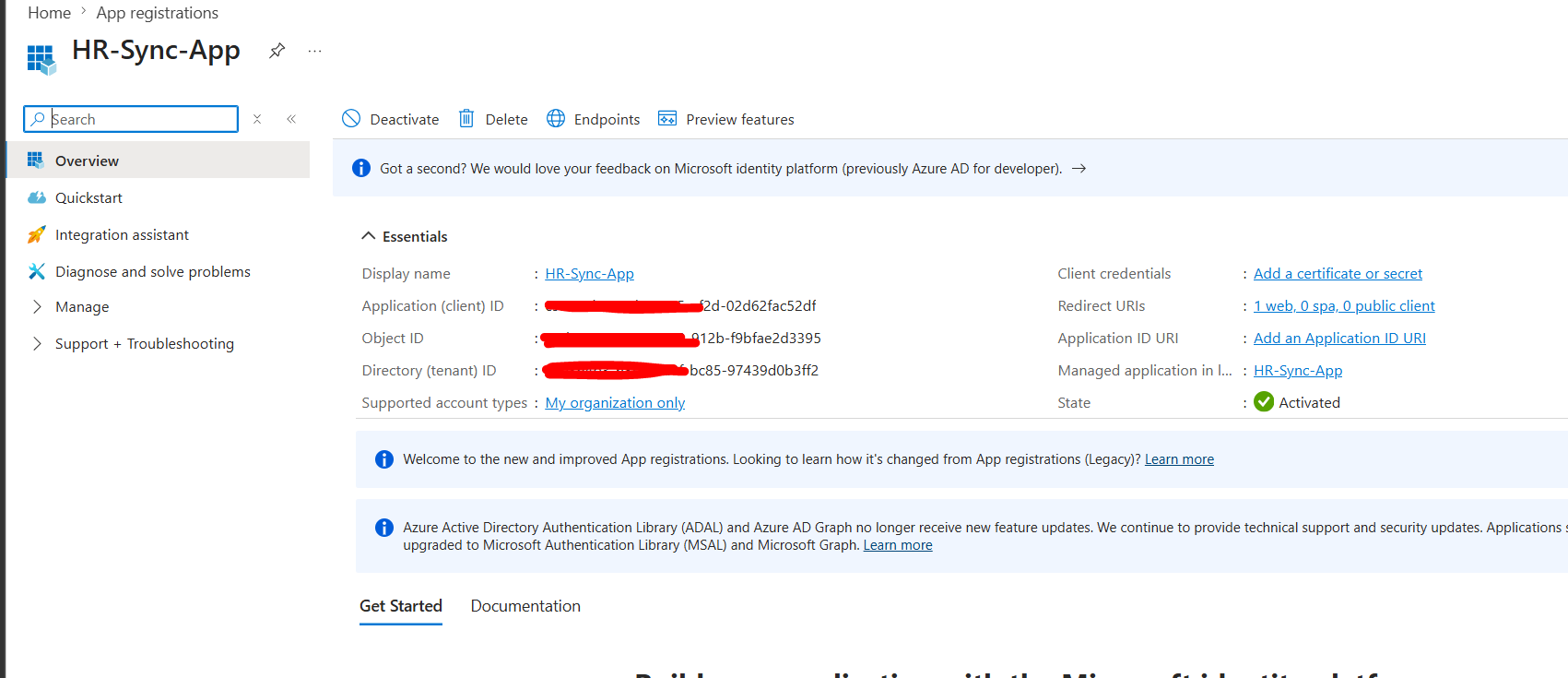
Every app registration gets a unique Application (Client) ID and a Directory (Tenant) ID. These are the identifiers the app uses when it authenticates to Entra ID and requests tokens.
Here is what almost nobody in a security role has noticed: any standard user in a tenant can create an app registration by default. No admin role required. No approval process. The user goes to portal.azure.com, finds App Registrations, and clicks New Registration. The tenant setting controlling this is called “Users can register applications” and it ships set to Yes in every new tenant.
OAuth 2.0 The Protocol That Makes This Possible
OAuth 2.0 is the authorization framework used by virtually every modern cloud service. The entire attack surface this article documents lives inside how OAuth handles permissions and consent, so understanding it properly matters.
OAuth defines four roles. The resource owner is the user who owns the data their mailbox, their files, their calendar. The client is the application requesting access to that data. The resource server is the API holding the data in Microsoft’s world, this is Microsoft Graph. The authorization server is Entra ID, the system that issues access tokens after the user gives permission.
The flow works like this. The user clicks something in the application that requires access to their data. The application redirects the user to Entra ID with three pieces of information: which app is asking (the client ID), what it wants access to (the requested scopes), and where to send the user afterward (the redirect URI). Entra ID shows the user a consent dialog listing what the application is asking for. The user clicks Accept. Entra ID issues an authorization code to the redirect URI. The application exchanges that code for an access token. The application uses the access token to call Microsoft Graph. Microsoft Graph returns the data.
The access token is a signed JWT (JSON Web Token) that Microsoft Graph accepts as proof that a user consented to the requested permissions. It has an expiry typically one hour and a refresh token that lets the application get new access tokens without re-prompting the user.
Delegated Permissions vs Application Permissions
This distinction is the single most important concept in this entire article. The type of permission an application requests determines what it can access and whether admin approval is required.
Delegated permissions mean the app acts on behalf of a signed-in user. The application can only access what that specific user can access. If Alice consents to Mail.Read as a delegated permission, the app can read Alice’s email and only Alice’s email. The access token contains Alice’s identity and her access boundaries.
Application permissions mean the app acts as itself, not on behalf of any user. No user needs to be signed in. The application gets tenant-wide access to the resource. If Mail.Read is granted as an application permission, the app can read every mailbox in the entire tenant without any user being involved. Application permissions always require administrator consent there is no way for a standard user to grant them.
The attack chain this article documents starts with delegated permissions (which any user can self-consent) and escalates to application permissions (which require admin approval but can be requested through a workflow that IT staff often approve without fully understanding the implications).
Standard user creates app registration
              ↓
App requests Mail.Read (delegated permission)
              ↓
User consents  zero admin approval needed
              ↓
App can read that user's email programmatically
              ↓
User submits admin consent request for Mail.Read (application permission)
              ↓
Cloud Application Administrator approves it
              ↓
App can now read every mailbox in the entire tenant
              ↓
No new alert. No new audit flag. Nobody noticed.
Microsoft Graph Every Piece of Your Organization’s Data
Microsoft Graph at https://graph.microsoft.com is the unified API surface for all Microsoft 365 data. One endpoint, one authentication model, one permission system covering mail, calendar, files, Teams messages, user profiles, groups, security events, and more.
Every sensitive piece of data your organization holds in Microsoft 365 is accessible through Graph if the right permissions are in place. A brief overview of what each permission unlocks:
Mail.Read gives read access to the mailbox of whoever consented (delegated) or all mailboxes in the tenant (application). Mail.ReadWrite adds the ability to create, modify, and delete email. Files.Read.All gives read access to SharePoint and OneDrive. Calendars.Read gives access to calendar events. User.Read.All gives read access to every user profile in the directory. Chat.Read gives read access to Teams messages. Sites.Read.All gives access to every SharePoint site.
When granted as application permissions with the .All variants, a single approved app registration becomes a permanent API-level backdoor to everything. And once granted, those permissions persist until an administrator explicitly removes them or until someone notices.
The Three Tiers of Consent
Microsoft’s consent model has three tiers and understanding which tier applies to which permission determines the entire risk profile.
User consent means the user can grant this themselves with no admin involvement. This applies to low-sensitivity delegated permissions that only affect the consenting user’s own data. Mail.Read delegated, Calendars.Read, Files.ReadWrite all of these are self-consentable by any user by default. This is where the initial exposure in this article lives.
Admin consent required means only a Global Admin, Application Administrator, or Cloud Application Administrator can grant this. It applies to application permissions and higher-sensitivity delegated permissions like User.Read.All. These require explicit administrator approval before the app can use them.
The admin consent workflow is what happens when a user tries to consent to a permission that requires admin approval. Rather than just blocking the user, the tenant can be configured to let them submit a justification request. A reviewer gets an email and can approve or deny. This workflow is not enabled by default and if it is not configured, users who need admin-approved permissions just see an error with no path forward.
The “Users Can Register Applications” Setting
This single toggle controls the entire attack surface documented in this article. You find it in:
Entra admin center → Identity → Users → User settings → App registrations → “Users can register applications”
When set to Yes, which is the default, any user in the tenant including guest accounts can create app registrations, add API permissions to them, create client secrets, consent to delegated permissions on their own behalf, and invite other users to become co-owners of the app.
When set to No, only users with the Application Administrator or Global Administrator role can create app registrations.
Most organizations have never changed this setting. It has been Yes since the day the tenant was provisioned.
The Enumeration Gap Why Nobody Has Looked
Security teams audit service principals and enterprise applications with some regularity. But the app registrations themselves particularly ones created by standard users are almost never audited. The Microsoft Entra portal shows you a list of all app registrations but gives you no easy way to answer the questions that actually matter from a security perspective: who created this, are they still at the company, what does this app actually have permission to do, and when was the last time anyone used it?
The Microsoft Graph API can answer all of these questions, but there is no built-in report that surfaces this information in the portal. In a tenant of 5,000 users you may find dozens or hundreds of user-created app registrations, many of which have sensitive permissions, some of which have owners who left the organization years ago.
Orphaned App Registrations
An orphaned app registration is one where the original owner has left the organization or been disabled. The app still exists. Its service principal still exists. Any client secrets it has are still valid. And if it had sensitive permissions approved, those permissions are still active.
This is the path where a legitimate developer tool becomes a persistent access backdoor. Developer creates a data sync tool, gets admin consent for Mail.ReadWrite as an application permission, leaves the company, their account is disabled, and the app keeps working indefinitely. Anyone who somehow obtains the client secret through a code repository, a leaked config file, an old handover document can authenticate as the application and access data across the entire tenant.
What Attackers Do With This
Two distinct threat models are documented by security researchers and threat intelligence teams.
The insider threat model involves a current employee creating an app, granting themselves delegated permissions that go beyond what their normal email client logs would show, and using it to exfiltrate email over time. The activity appears in audit logs as application traffic many DLP solutions are tuned to watch for user interactive activity and miss API-based access entirely.
The OAuth phishing model involves an external attacker creating a malicious application and sending phishing emails containing a link that initiates an OAuth consent flow. If the target clicks the link and approves the consent dialog, the attacker’s application receives a delegated token for that user’s data. The attacker never needed the password. No MFA prompt was triggered. The access persists until the app’s service principal is removed which never happens if nobody knows to look for it. CISA issued advisories about this technique in 2024 and 2025 because it has been used in real attacks against US government and critical infrastructure organizations.
Before You Start
All labs in this article run entirely within your existing Microsoft 365 E5 tenant. No additional Azure spend is required. The vulnerability exists in the free default configuration you do not need any special licensing to reproduce it. You do need a test standard user account with no admin roles, a Cloud Application Administrator account for Lab 3, and your Global Admin account for the governance labs.
Everything demonstrated here is documented behavior that Microsoft has published guidance for. The purpose is to understand and close a real exposure in your own tenant.
Lab 1 Enumerate Every App Registration in the Tenant
Most organizations have never run this query. The output will surprise you.
Connecting with the Right Permissions
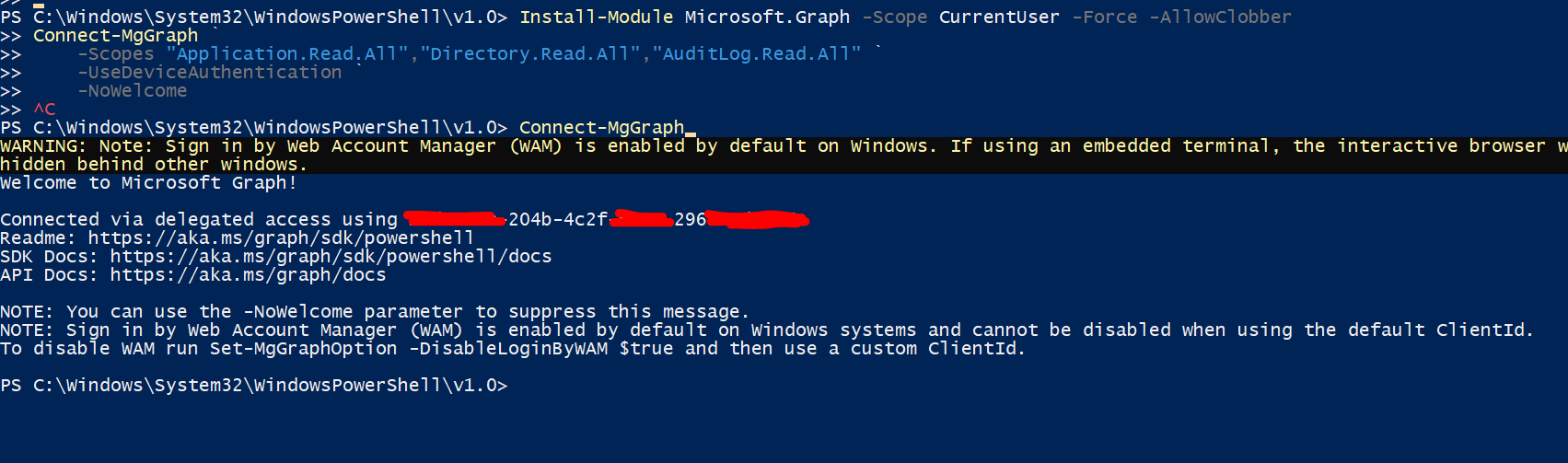
Install-Module Microsoft.Graph -Scope CurrentUser -Force -AllowClobber
Connect-MgGraph `
    -Scopes "Application.Read.All","Directory.Read.All","AuditLog.Read.All" `
    -UseDeviceAuthentication `
    -NoWelcome

# Verify you are connected to the right tenant
Get-MgContext | Select-Object Account, TenantId
The Full Enumeration Script
# Pull every app registration in the tenant
$allApps = Get-MgApplication -All -Property `
    "id,appId,displayName,createdDateTime,signInAudience,requiredResourceAccess"

Write-Host "Total app registrations found: $($allApps.Count)"

# Build the risk report
$appReport = @()

foreach ($app in $allApps) {
    $owners = Get-MgApplicationOwner -ApplicationId $app.Id -ErrorAction SilentlyContinue

    $ownerDetails = @()
    foreach ($owner in $owners) {
        try {
            $user = Get-MgUser -UserId $owner.Id `
                -Property "displayName,userPrincipalName,accountEnabled" `
                -ErrorAction SilentlyContinue
            if ($user) {
                $roles = Get-MgUserMemberOf -UserId $owner.Id -ErrorAction SilentlyContinue |
                    Where-Object {
                        $_.AdditionalProperties["@odata.type"] -eq "#microsoft.graph.directoryRole"
                    }
                $ownerDetails += [PSCustomObject]@{
                    UPN      = $user.UserPrincipalName
                    IsAdmin  = $roles.Count -gt 0
                    Enabled  = $user.AccountEnabled
                }
            }
        } catch {}
    }

    # Count configured permissions
    $permCount = 0
    foreach ($resource in $app.RequiredResourceAccess) {
        $permCount += $resource.ResourceAccess.Count
    }

    $appReport += [PSCustomObject]@{
        AppName           = $app.DisplayName
        AppId             = $app.AppId
        ObjectId          = $app.Id
        Created           = $app.CreatedDateTime
        OwnerCount        = $ownerDetails.Count
        Owners            = ($ownerDetails | Select-Object -ExpandProperty UPN) -join "; "
        HasAdminOwner     = ($ownerDetails | Where-Object { $_.IsAdmin } | Measure-Object).Count -gt 0
        HasDisabledOwner  = ($ownerDetails | Where-Object { -not $_.Enabled } | Measure-Object).Count -gt 0
        IsOrphaned        = $ownerDetails.Count -eq 0
        PermissionCount   = $permCount
    }
}

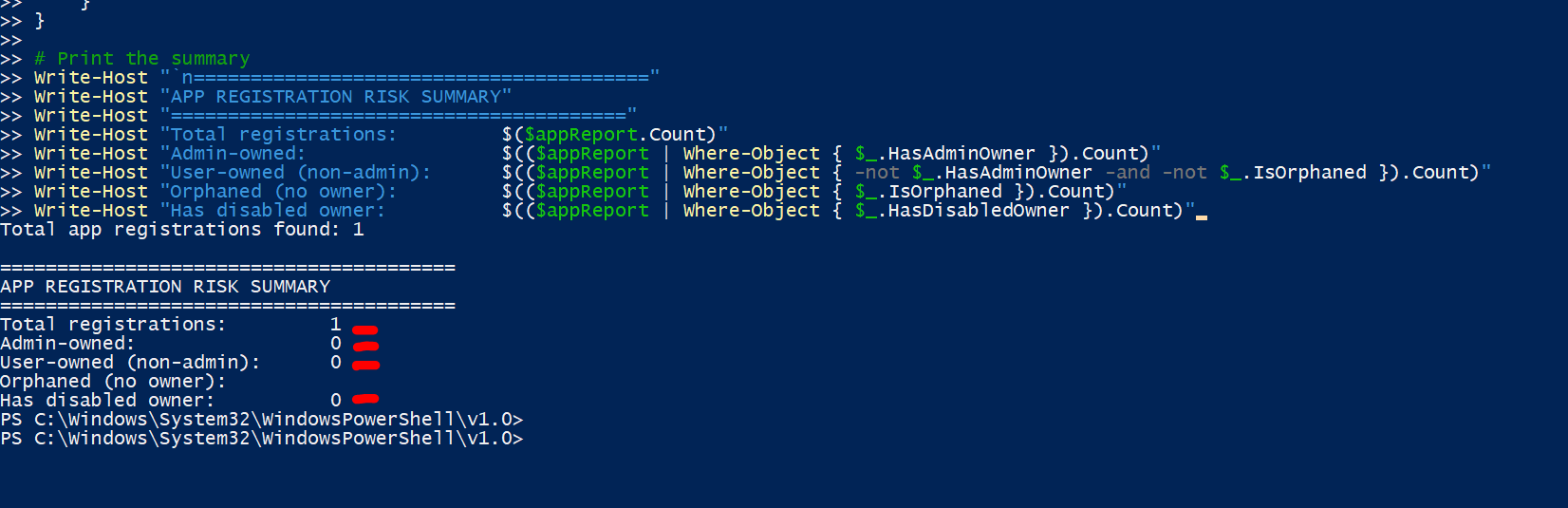
# Print the summary
Write-Host "`n========================================"
Write-Host "APP REGISTRATION RISK SUMMARY"
Write-Host "========================================"
Write-Host "Total registrations:         $($appReport.Count)"
Write-Host "Admin-owned:                 $(($appReport | Where-Object { $_.HasAdminOwner }).Count)"
Write-Host "User-owned (non-admin):      $(($appReport | Where-Object { -not $_.HasAdminOwner -and -not $_.IsOrphaned }).Count)"
Write-Host "Orphaned (no owner):         $(($appReport | Where-Object { $_.IsOrphaned }).Count)"
Write-Host "Has disabled owner:          $(($appReport | Where-Object { $_.HasDisabledOwner }).Count)"
Mapping Sensitive Permissions
Now cross-reference which apps have the permissions that actually matter:
# These are the GUIDs for high-sensitivity Microsoft Graph permissions
$sensitiveMap = @{
    "570282fd-fa5c-430d-a7fd-fc8dc98a9dca" = "Mail.Read (delegated)"
    "024d486e-b451-40bb-833d-3e66d98c5c73" = "Mail.ReadWrite (delegated)"
    "e2a3a72e-5f79-4c64-b1b1-878b674786c9" = "Mail.ReadWrite.All (application)"
    "810c84a8-4a9e-49e6-bf7d-12d183f40d01" = "Mail.Read (application)"
    "df021288-bdef-4463-88db-98f22de89214" = "User.Read.All (application)"
    "01d4889c-1287-42c6-ac1f-5d1e02578ef6" = "Files.Read.All (application)"
    "75359482-378d-4052-8f01-80520e7db3cd" = "Files.ReadWrite.All (application)"
    "06da0dbc-49e2-44d2-8312-e9d56496d205" = "Calendars.Read (delegated)"
    "7427e0e9-2fba-42fe-b0c0-848c9e6a8182" = "offline_access"
}

Write-Host "`n========================================"
Write-Host "APPS WITH SENSITIVE PERMISSIONS"
Write-Host "========================================"

foreach ($app in $allApps) {
    $found = @()
    foreach ($resource in $app.RequiredResourceAccess) {
        foreach ($scope in $resource.ResourceAccess) {
            if ($sensitiveMap.ContainsKey($scope.Id)) {
                $found += $sensitiveMap[$scope.Id]
            }
        }
    }
    if ($found.Count -gt 0) {
        $owners = Get-MgApplicationOwner -ApplicationId $app.Id -ErrorAction SilentlyContinue
        Write-Host ""
        Write-Host "App:         $($app.DisplayName)"
        Write-Host "Created:     $($app.CreatedDateTime)"
        Write-Host "Owners:      $($owners.Count)"
        Write-Host "Permissions: $($found -join ' | ')"
    }
}
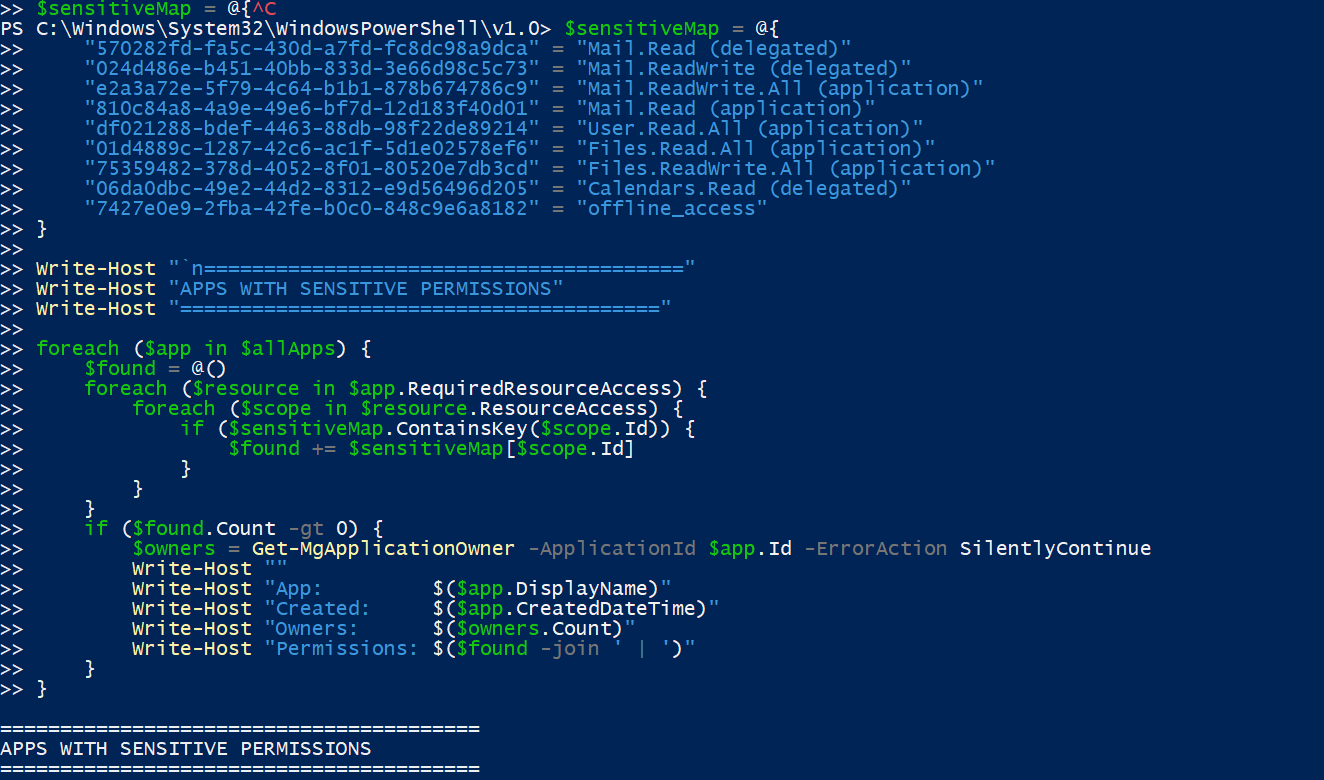
This output is the core finding of Lab 1. In most enterprise tenants this query has never been run. The results are almost always surprising.
Lab 2 Standard User to Inbox Data in Under 10 Minutes
This is the demonstration that makes this article real. We are going to show, step by step, what the portal experience looks like for a standard user and exactly how quickly someone can go from nothing to reading their own mailbox via an API they registered themselves.
Registering the App as a Standard User
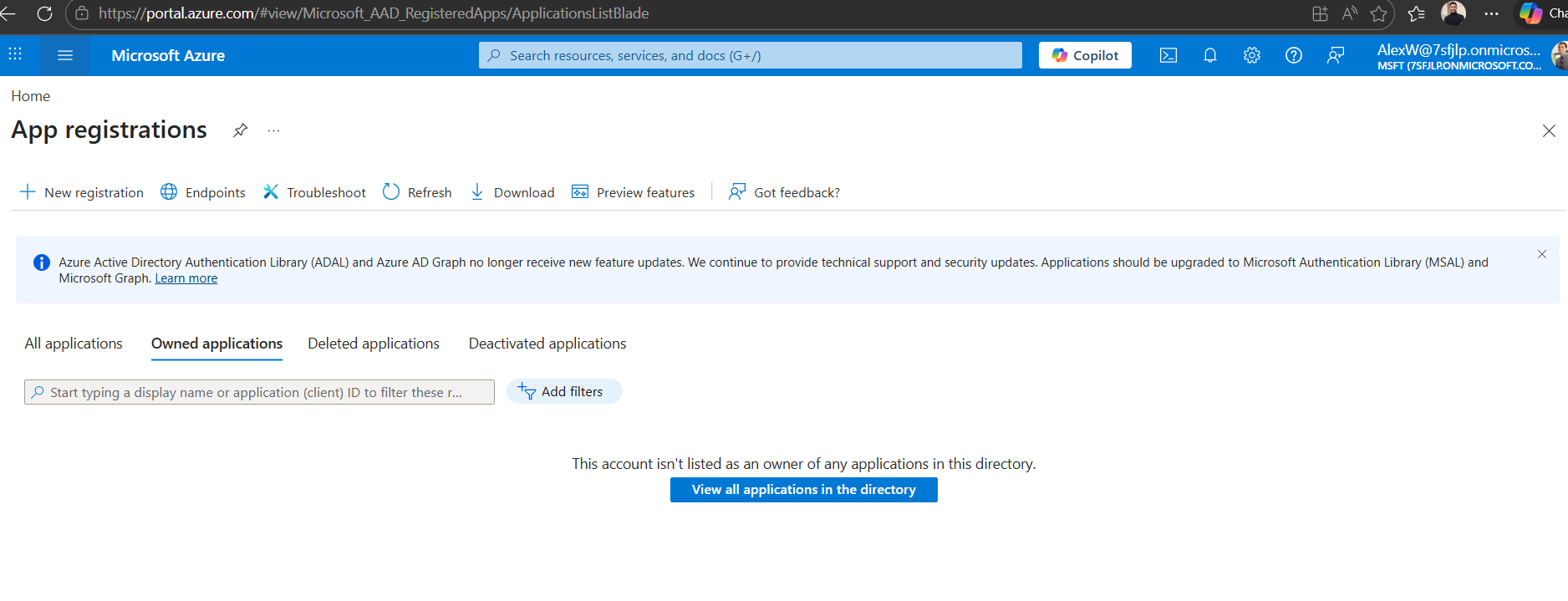
Sign out of your admin account completely. Sign into portal.azure.com as your test standard user the account with no admin roles whatsoever.
Navigate directly to: `https://portal.azure.com/#view/Microsoft_AAD_RegisteredApps/ApplicationsListBlade`
Click New registration.
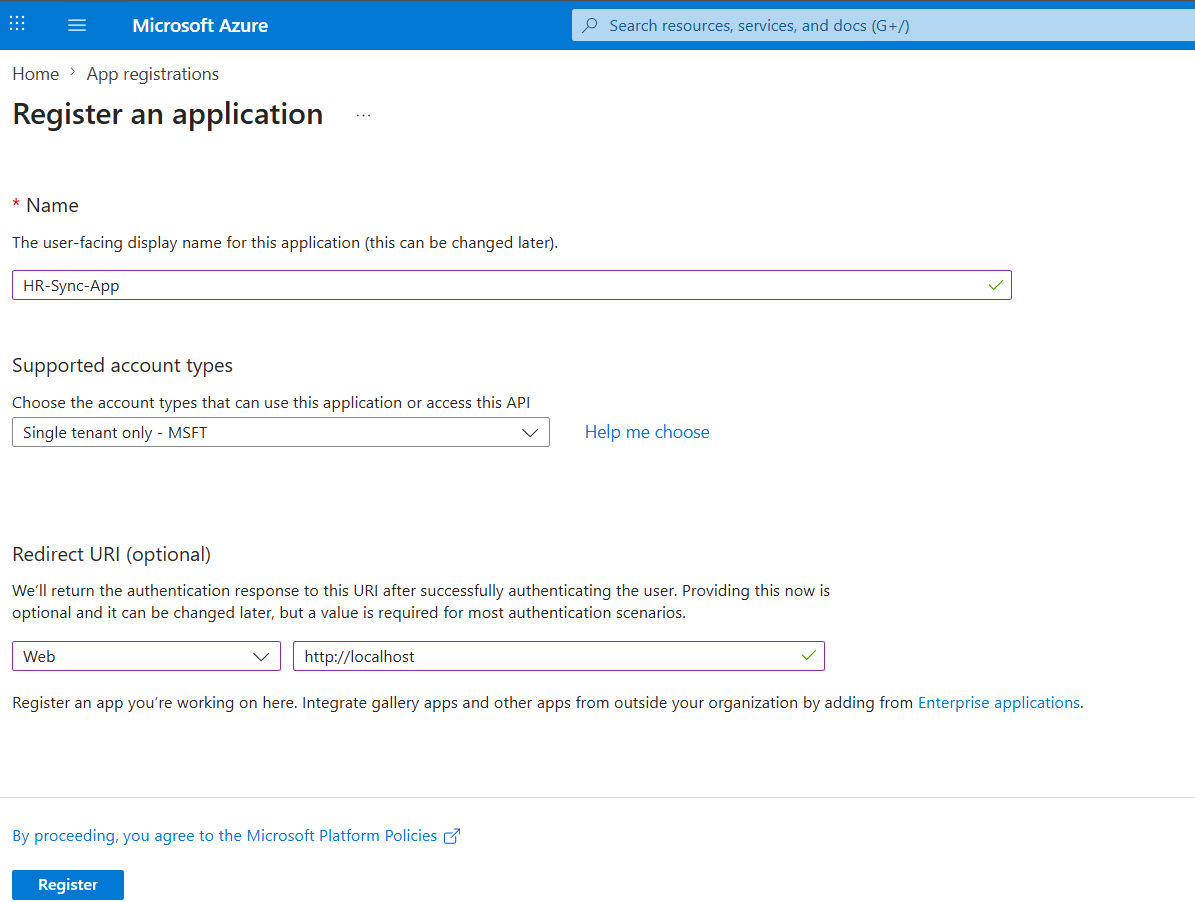
Fill in the fields:
- Name:
HR-Sync-Tool(deliberately chosen to sound like a legitimate internal tool) - Supported account types: Accounts in this organizational directory only
- Redirect URI: Web
http://localhost
Click Register.
Adding API Permissions
In the left menu of your new app registration click API permissions, then Add a permission, then Microsoft Graph, then Delegated permissions.
Search for Mail.Read and select it. Then search for User.Read and select it. Click Add permissions.
![[Pasted image 20260430123223.png||Screenshot of the API permissions page showing Mail.Read and User.Read listed as delegated permissions. Notice the Status column it says “Not granted for [tenant]” but there is no lock icon, no admin required warning visible to the standard user at this stage. The consent happens when they actually authenticate via the OAuth flow, not here.]]
Creating a Client Secret
Click Certificates and secrets in the left menu, then New client secret.
Set a description and leave the expiry at 24 months. Click Add.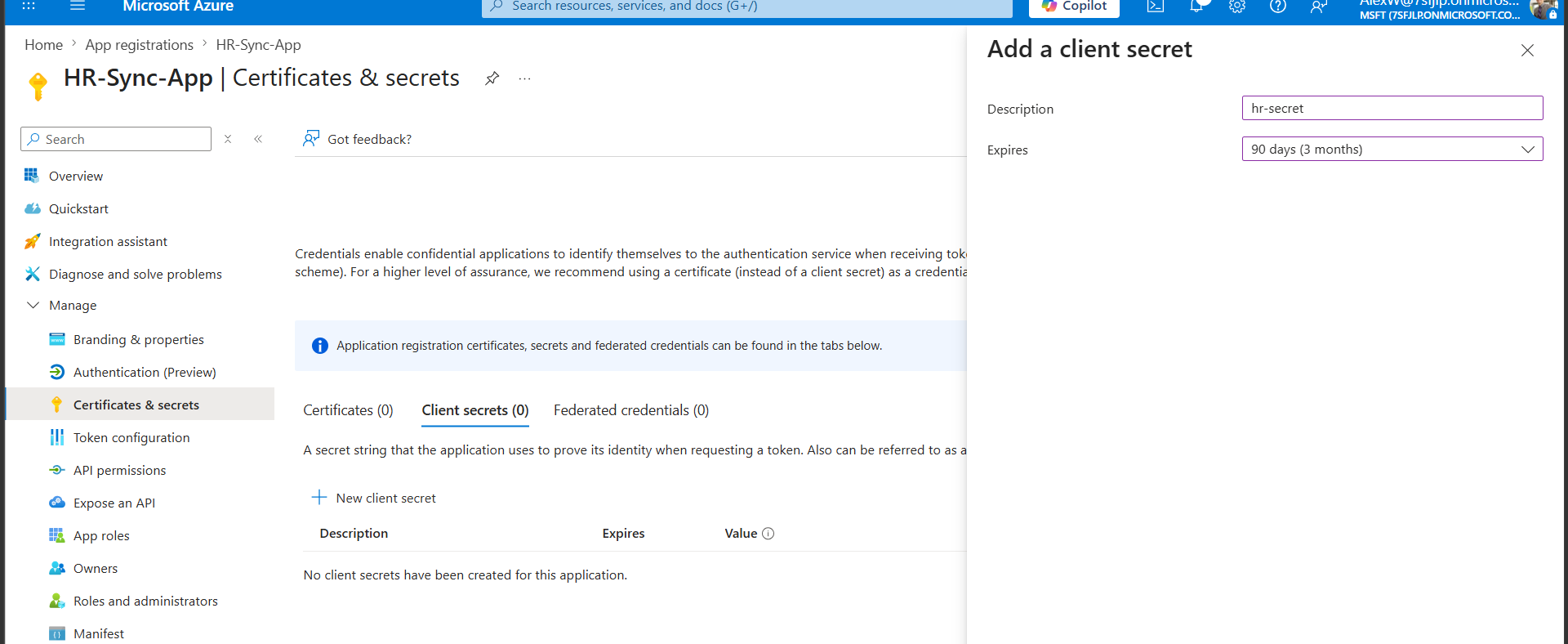
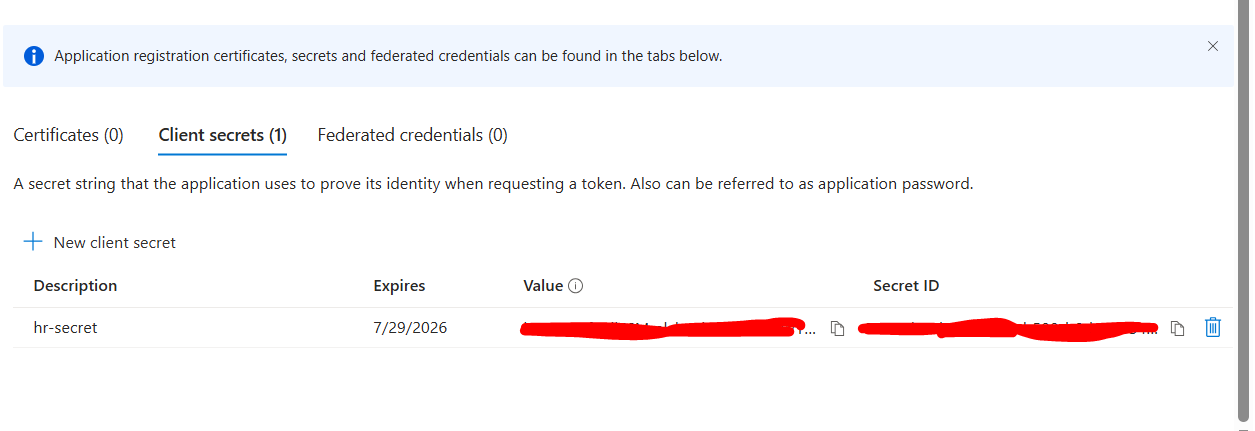
Copy three values from your app registration:
- Client ID (from the Overview page)
- Tenant ID (from the Overview page)
- Client Secret Value (from the page you are currently on)
Running the OAuth Flow
Install the required Python library on your machine:
pip install msal requests

Create a file called mail_demo.py with the following content. Replace the placeholder values with your actual IDs:
import msal
import requests
import json

# Replace these with your actual values from the app registration
CLIENT_ID = "paste-your-client-id-here"
TENANT_ID = "paste-your-tenant-id-here"
CLIENT_SECRET = "paste-your-client-secret-here"

AUTHORITY = f"https://login.microsoftonline.com/{TENANT_ID}"
SCOPES = ["Mail.Read", "User.Read", "offline_access"]

# Using the public client flow  this triggers the consent dialog
app = msal.PublicClientApplication(CLIENT_ID, authority=AUTHORITY)

# Device code flow is easiest to demonstrate
# It gives you a URL and a short code to enter in any browser
flow = app.initiate_device_flow(scopes=SCOPES)
print(f"\nOpen this URL in your browser: {flow['verification_uri']}")
print(f"Enter this code when prompted:  {flow['user_code']}")
print("\nWaiting for you to authenticate and consent...")

# This blocks until the user completes the browser auth
result = app.acquire_token_by_device_flow(flow)

if "access_token" in result:
    print("\n✅ Token acquired successfully")
    print(f"Token expires in: {result['expires_in']} seconds")

    headers = {"Authorization": f"Bearer {result['access_token']}"}

    # First confirm who we authenticated as
    me_response = requests.get(
        "https://graph.microsoft.com/v1.0/me",
        headers=headers
    )
    user_info = me_response.json()
    print(f"\nAuthenticated as: {user_info.get('userPrincipalName')}")
    print(f"Display name:     {user_info.get('displayName')}")

    # Now read the inbox
    messages_response = requests.get(
        "https://graph.microsoft.com/v1.0/me/messages"
        "?$top=5&$select=subject,from,receivedDateTime,bodyPreview",
        headers=headers
    )

    print(f"\n✅ Inbox API call  HTTP {messages_response.status_code}")
    print("\nMost recent messages:")

    for msg in messages_response.json().get("value", []):
        sender = msg["from"]["emailAddress"]["address"]
        subject = msg["subject"]
        received = msg["receivedDateTime"]
        preview = msg["bodyPreview"][:100] if msg.get("bodyPreview") else ""
        print(f"\n  From:    {sender}")
        print(f"  Subject: {subject}")
        print(f"  Date:    {received}")
        print(f"  Preview: {preview}...")

else:
    print(f"\nError: {result.get('error_description', 'Unknown error')}")
Run it:
python mail_demo.py
Open the URL that appears in your terminal. Sign in as your test standard user. You will see a consent dialog. 
Click Accept. Return to your terminal.
What Did the Logs Capture?
Pull the audit log immediately:
Connect-MgGraph -Scopes "AuditLog.Read.All"

# Look for the consent event from the last hour
$events = Get-MgAuditLogDirectoryAudit `
    -Filter "activityDisplayName eq 'Consent to application' and activityDateTime ge $((Get-Date).AddHours(-1).ToString('yyyy-MM-ddTHH:mm:ssZ'))" `
    -Top 10

foreach ($event in $events) {
    Write-Host "================================"
    Write-Host "Operation: $($event.ActivityDisplayName)"
    Write-Host "Time:      $($event.ActivityDateTime)"
    Write-Host "User:      $($event.InitiatedBy.User.UserPrincipalName)"
    Write-Host "Result:    $($event.Result)"
    Write-Host "App:       $($event.TargetResources[0].DisplayName)"
}
The log entry exists. It records that consent happened. But in a default Sentinel deployment with no custom rules, this event generates no alert, no incident, and no notification to the security team. A user-created app now has delegated access to the user’s mailbox and the SOC will never know unless they specifically go looking.
Lab 3 Escalating to Cross-User Access via Admin Consent
One step further. The same user-created app can request application-level permissions, submit an admin consent request, and if a Cloud Application Administrator approves it which is a role commonly held by IT staff and helpdesk managers the app gains access to every mailbox in the tenant.
Requesting an Application Permission
Still logged in as the test standard user, go back to the app registration’s API permissions page.
Click Add a permission → Microsoft Graph → Application permissions.
Search for Mail.Read and select it. Click Add permissions.
You will see the permission listed with an “Admin consent required” indicator.
Click Grant admin consent for [tenant]. You will see an authorization error expected, you are a standard user.
Instead of the direct grant button, click the Request admin consent option. Fill in the justification field: “Required for the HR data synchronization process that was approved by management.”
Submit the request.
Approving as Cloud Application Administrator
Switch to your Cloud Application Administrator account. In Entra admin center navigate to Identity → Enterprise Applications → Admin consent requests.
Click Review permissions and consent. The portal shows a detailed breakdown of what is being requested. Click Accept.
Accessing Another User’s Mailbox
Now update the Python script to use the client credentials flow this is the application permission flow where no user needs to be signed in:
import msal
import requests

CLIENT_ID = "paste-your-client-id-here"
TENANT_ID = "paste-your-tenant-id-here"
CLIENT_SECRET = "paste-your-client-secret-here"

AUTHORITY = f"https://login.microsoftonline.com/{TENANT_ID}"

# Confidential client for application permissions
app = msal.ConfidentialClientApplication(
    CLIENT_ID,
    authority=AUTHORITY,
    client_credential=CLIENT_SECRET
)

# Client credentials flow  no user, no consent prompt, just the app authenticating as itself
result = app.acquire_token_for_client(
    scopes=["https://graph.microsoft.com/.default"]
)

if "access_token" in result:
    print("✅ Application token acquired  no user sign-in required")

    headers = {"Authorization": f"Bearer {result['access_token']}"}

    # Access a completely different user's mailbox
    # This user never consented to anything  the app permission is tenant-wide
    target_user = "another.user@yourtenant.onmicrosoft.com"

    response = requests.get(
        f"https://graph.microsoft.com/v1.0/users/{target_user}/messages"
        "?$top=5&$select=subject,from,receivedDateTime",
        headers=headers
    )

    print(f"\nAccessing {target_user}'s mailbox: HTTP {response.status_code}")

    if response.status_code == 200:
        print("✅ Cross-user mailbox access confirmed")
        for msg in response.json().get("value", []):
            print(f"  Subject: {msg['subject']}")
            print(f"  From:    {msg['from']['emailAddress']['address']}")

    # Show that this token works for every user in the tenant
    all_users = requests.get(
        "https://graph.microsoft.com/v1.0/users?$select=userPrincipalName&$top=10",
        headers=headers
    )
    print(f"\nAll users accessible: HTTP {all_users.status_code}")
    print("This token provides read access to every mailbox in the tenant")
Lab 4 The Governance Framework
Three controls close this exposure. You should implement all three.
Control 1 Disable User App Registration
In Entra admin center navigate to Identity → Users → User settings. Under App registrations, set “Users can register applications” to No. Click Save.
# Or via PowerShell  same result
Connect-MgGraph -Scopes "Policy.ReadWrite.Authorization"

Update-MgPolicyAuthorizationPolicy -BodyParameter @{
    defaultUserRolePermissions = @{
        allowedToCreateApps = $false
    }
}

# Verify
$policy = Get-MgPolicyAuthorizationPolicy
Write-Host "Users can register apps: $($policy.DefaultUserRolePermissions.AllowedToCreateApps)"
# Should output: False
Now test it sign in as the standard user and try to register a new app. The New Registration button is greyed out or shows a permissions error.
Control 2 Configure the Admin Consent Workflow
The admin consent workflow should route requests to a named security reviewer, not a shared inbox that nobody monitors:
# First find your security review group ID
$reviewGroup = Get-MgGroup -Filter "displayName eq 'Security Reviewers'"
$reviewGroupId = $reviewGroup.Id

# Configure the workflow
$policyParams = @{
    isEnabled             = $true
    version               = 1
    notifyReviewers       = $true
    remindersEnabled      = $true
    requestDurationInDays = 14
    reviewers = @(
        @{
            query     = "/groups/$reviewGroupId/transitiveMembers"
            queryType = "MicrosoftGraph"
        }
    )
}

Update-MgPolicyAdminConsentRequestPolicy -BodyParameter $policyParams

# Verify
$consentPolicy = Get-MgPolicyAdminConsentRequestPolicy
Write-Host "Consent workflow enabled: $($consentPolicy.IsEnabled)"
Control 3 Sentinel Detection Rules
These three KQL rules cover the event types that matter. Create each one as a scheduled analytics rule in Sentinel with a 5-minute run frequency and an alert threshold of greater than zero.
// Rule 1: App registration created by a non-admin user
// Priority: Medium
let AdminRoles = dynamic([
    "Global Administrator",
    "Application Administrator",
    "Cloud Application Administrator"
]);
AuditLogs
| where TimeGenerated > ago(1h)
| where OperationName == "Add application"
| where Result == "success"
| extend CreatedBy = tostring(InitiatedBy.user.userPrincipalName)
| extend AppName = tostring(TargetResources[0].displayName)
| join kind=leftouter (
    AuditLogs
    | where OperationName == "Add member to role"
    | mv-expand TargetResources
    | extend RoleMember = tostring(TargetResources.userPrincipalName)
    | extend RoleName = tostring(TargetResources.displayName)
    | where RoleName in (AdminRoles)
    | distinct RoleMember
) on $left.CreatedBy == $right.RoleMember
| where isempty(RoleMember)
| project TimeGenerated, AppName, CreatedBy, Result
| sort by TimeGenerated desc
// Rule 2: User self-consented to an application
// Priority: Low  expected after hardening, unexpected before it
AuditLogs
| where TimeGenerated > ago(1h)
| where OperationName == "Consent to application"
| where Result == "success"
| extend ConsentingUser = tostring(InitiatedBy.user.userPrincipalName)
| extend AppName = tostring(TargetResources[0].displayName)
| project TimeGenerated, ConsentingUser, AppName
| sort by TimeGenerated desc
// Rule 3: Admin consent approved for application-level permission
// Priority: High  application permissions are tenant-wide
AuditLogs
| where TimeGenerated > ago(24h)
| where OperationName == "Consent to application"
| where Result == "success"
| extend ApprovedBy = tostring(InitiatedBy.user.userPrincipalName)
| extend AppName = tostring(TargetResources[0].displayName)
| extend PermDetails = tostring(TargetResources[0].modifiedProperties)
| where PermDetails has "AllPrincipals"
| project TimeGenerated, ApprovedBy, AppName, PermDetails
| sort by TimeGenerated desc
Lab 5 Automated Remediation
Notifying Existing App Owners
Connect-MgGraph -Scopes "Mail.Send","Application.ReadWrite.All","Directory.Read.All"

# Use the $appReport from Lab 1
$remediationCandidates = $appReport | Where-Object {
    -not $_.HasAdminOwner -and $_.PermissionCount -gt 0
}

Write-Host "Apps requiring owner review: $($remediationCandidates.Count)"

foreach ($candidate in $remediationCandidates) {
    if (-not $candidate.IsOrphaned -and $candidate.Owners) {
        $ownerEmail = $candidate.Owners.Split(";")[0].Trim()

        $emailParams = @{
            message = @{
                subject = "Action Required  Application Registration Review: $($candidate.AppName)"
                body = @{
                    contentType = "HTML"
                    content = @"
<p>Hi,</p>
<p>Our security team has identified you as the owner of the application
<strong>$($candidate.AppName)</strong>, registered on $($candidate.Created).</p>
<p>This application has <strong>$($candidate.PermissionCount) API permissions</strong>
configured. As part of our app registration governance review, we are asking all
owners to confirm whether their application is still required.</p>
<p>Please reply within <strong>14 days</strong> to confirm the app is still needed,
or to let us know it can be disabled.</p>
<p>Applications with no response after 14 days will be automatically disabled.</p>
<p>Security Team</p>
"@
                }
                toRecipients = @(@{
                    emailAddress = @{ address = $ownerEmail }
                })
            }
        }

        Invoke-MgGraphRequest `
            -Method POST `
            -Uri "https://graph.microsoft.com/v1.0/me/sendMail" `
            -Body $emailParams `
            -ContentType "application/json"

        Write-Host "Notification sent to $ownerEmail for app: $($candidate.AppName)"
    }
}
Disabling Orphaned Apps Immediately
Orphaned apps have no owner to notify. Disable them now:
$orphanedApps = $appReport | Where-Object { $_.IsOrphaned }
Write-Host "Orphaned apps to disable: $($orphanedApps.Count)"

foreach ($orphan in $orphanedApps) {
    # Find the service principal and disable it
    $sp = Get-MgServicePrincipal -Filter "appId eq '$($orphan.AppId)'" -ErrorAction SilentlyContinue

    if ($sp) {
        Update-MgServicePrincipal `
            -ServicePrincipalId $sp.Id `
            -AccountEnabled $false

        Write-Host "Disabled: $($orphan.AppName) (created $($orphan.Created))"
    }
}
Verifying Token Invalidation
After disabling an app, any previously issued tokens should fail:
import requests

# Paste a previously obtained access token here
old_token = "eyJ0eXAiOiJKV1Qi..."

headers = {"Authorization": f"Bearer {old_token}"}

response = requests.get(
    "https://graph.microsoft.com/v1.0/me/messages",
    headers=headers
)

print(f"HTTP Status: {response.status_code}")
print(f"Response: {response.json().get('error', {}).get('message', 'Success')}")
The Full Governance Script
Deploy this against your tenant today. It does everything in order: checks the current setting, disables user registration, audits existing apps, and outputs a prioritized remediation list.
# ============================================
# ENTRA ID APP REGISTRATION GOVERNANCE AUDIT
# Run as Global Administrator
# ============================================

Connect-MgGraph `
    -Scopes "Application.Read.All","Policy.ReadWrite.Authorization",
            "AuditLog.Read.All","Directory.Read.All" `
    -UseDeviceAuthentication `
    -NoWelcome

Write-Host "=== CURRENT CONFIGURATION ===" -ForegroundColor Cyan
$authPolicy = Get-MgPolicyAuthorizationPolicy
Write-Host "Users can register apps: $($authPolicy.DefaultUserRolePermissions.AllowedToCreateApps)"

if ($authPolicy.DefaultUserRolePermissions.AllowedToCreateApps) {
    Write-Host "WARNING: Standard users can currently register apps" -ForegroundColor Red
    $disable = Read-Host "Disable this now? (Y/N)"
    if ($disable -eq "Y") {
        Update-MgPolicyAuthorizationPolicy -BodyParameter @{
            defaultUserRolePermissions = @{ allowedToCreateApps = $false }
        }
        Write-Host "App registration by standard users: DISABLED" -ForegroundColor Green
    }
}

Write-Host "`n=== APP REGISTRATION AUDIT ===" -ForegroundColor Cyan
$apps = Get-MgApplication -All
$results = @{ Total = $apps.Count; Orphaned = 0; UserOwned = 0; AdminOwned = 0 }

foreach ($app in $apps) {
    $owners = Get-MgApplicationOwner -ApplicationId $app.Id -ErrorAction SilentlyContinue
    if ($owners.Count -eq 0) {
        $results.Orphaned++
        continue
    }
    $hasAdmin = $false
    foreach ($owner in $owners) {
        $roles = Get-MgUserMemberOf -UserId $owner.Id -ErrorAction SilentlyContinue |
            Where-Object { $_.AdditionalProperties["@odata.type"] -eq "#microsoft.graph.directoryRole" }
        if ($roles.Count -gt 0) { $hasAdmin = $true }
    }
    if ($hasAdmin) { $results.AdminOwned++ } else { $results.UserOwned++ }
}

Write-Host "Total app registrations: $($results.Total)"
Write-Host "Admin-owned:             $($results.AdminOwned)"
Write-Host "User-owned:              $($results.UserOwned)  ← review these"
Write-Host "Orphaned:                $($results.Orphaned)  ← disable these immediately"
What to Do Right Now
Three things, in order of priority.
First, run the Lab 1 enumeration script against your tenant. The output tells you your actual exposure. Do not skip this step and go straight to hardening you need to know what already exists before you change settings, otherwise you may not realize what you are inheriting.
Second, disable “Users can register applications.” This is one setting change that eliminates the entire self-service path for new exposure. It takes 30 seconds and has no impact on existing apps or admin-created apps.
Third, review the orphaned apps. Any app with sensitive permissions and no active owner should be disabled immediately. There is no notification needed there is nobody to notify.
Everything else the consent workflow configuration, the Sentinel rules, the automated remediation is important and worth implementing. But those first three steps reduce your exposure today.
Conclusion
The most dangerous app in your tenant was registered by a user who thought they were saving time. Maybe it was a developer prototyping a data integration. Maybe it was a power user who found a tutorial. Maybe it was someone who left the company three years ago and the app kept running. The app is there. The permissions are active. And until someone runs the enumeration query, nobody knows.
This is not a theoretical risk. OAuth application abuse has been used in documented incidents against enterprise tenants, government organizations, and critical infrastructure. CISA issued advisories about it. Microsoft published guidance about it. The technique works because it exploits features that are supposed to exist the attack surface is the default configuration, not a bug.
Run the audit. Close the settings gap. Monitor for new registrations. Find out what is already in your tenant before someone else does.
All research and demonstrations were conducted in isolated test environments for educational and defensive security purposes.
References
| Resource | Link |
|---|---|
| Microsoft User and admin consent in Entra ID | https://learn.microsoft.com/entra/identity/enterprise-apps/user-admin-consent-overview |
| Microsoft Configure how users consent to applications | https://learn.microsoft.com/entra/identity/enterprise-apps/configure-user-consent |
| Microsoft Admin consent workflow | https://learn.microsoft.com/entra/identity/enterprise-apps/configure-admin-consent-workflow |
| Microsoft Graph Applications endpoint reference | https://learn.microsoft.com/graph/api/resources/application |
| CISA Protecting Against OAuth Application Abuse | https://www.cisa.gov/news-events/cybersecurity-advisories/aa24-242a |
| Invictus IR Hunting Malicious OAuth Applications in M365 | https://www.invictus-ir.com/news/hunting-for-malicious-oauth-applications-in-microsoft-365 |
| Microsoft Continuous Access Evaluation | https://learn.microsoft.com/entra/identity/conditional-access/concept-continuous-access-evaluation |
| OWASP Top 10 Broken Access Control | https://owasp.org/Top10/A01_2021-Broken_Access_Control/ |